


Service Desk IT AI Agent - End User Help guide
Overview
The Service Desk AI Assistant is an AI-powered chat interface built directly into the IT support portal — the same portal you already use to submit tickets. When you open the portal to report an IT issue, you will see the AI Assistant alongside the classic ticket form. The assistant can answer questions and, in many cases, resolve your issue on the spot without requiring you to wait for a technician.
The AI Assistant is enabled automatically for all end users. No additional setup, login, or opt-in is required on your part.
Accessing the AI Assistant
Open the support portal as you normally would. On the Submit a ticket page, you will notice two tabs in the upper-right area:
- AI-Assistant — the default view, which opens an AI chat window.
- Classic form — the traditional ticket submission form.
The portal opens in AI-Assistant mode by default. The page header reads: "AI resolves most issues instantly. Switch it off any time for the classic form."

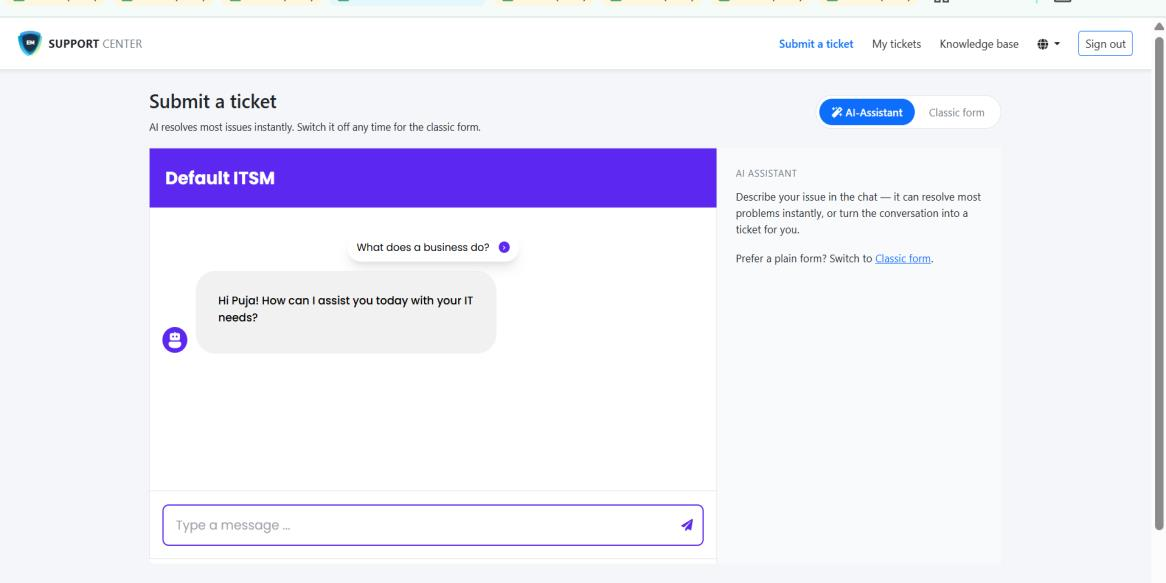
Using the AI Assistant
- Describing your issue
Type a description of your IT issue into the message field at the bottom of the chat window and press Send (the arrow icon).
The assistant will respond immediately. If your message does not provide enough detail, the assistant will ask follow-up questions to clarify the issue before attempting to resolve it. - What the AI Assistant can do
Depending on how the assistant has been trained and what integrations are active, it can:
- Answer IT questions using knowledge-base content loaded by your IT team.
- Execute actions — such as resetting a password or updating a user account — when a matching playbook is configured and the required integration (for example, Microsoft 365 or Google Workspace) is connected.
- Create a ticket on your behalf automatically if it cannot resolve the issue itself, so you do not need to switch to the Classic form.
Note: Whether the AI Assistant can execute actions (full resolution) depends on what playbooks and integrations your IT team has configured. On the first day of launch, predefined playbooks for Microsoft 365 and Google Workspace actions are included - Switching to the Classic form
If you prefer the traditional form, click the Classic form tab in the upper-right corner of the page.
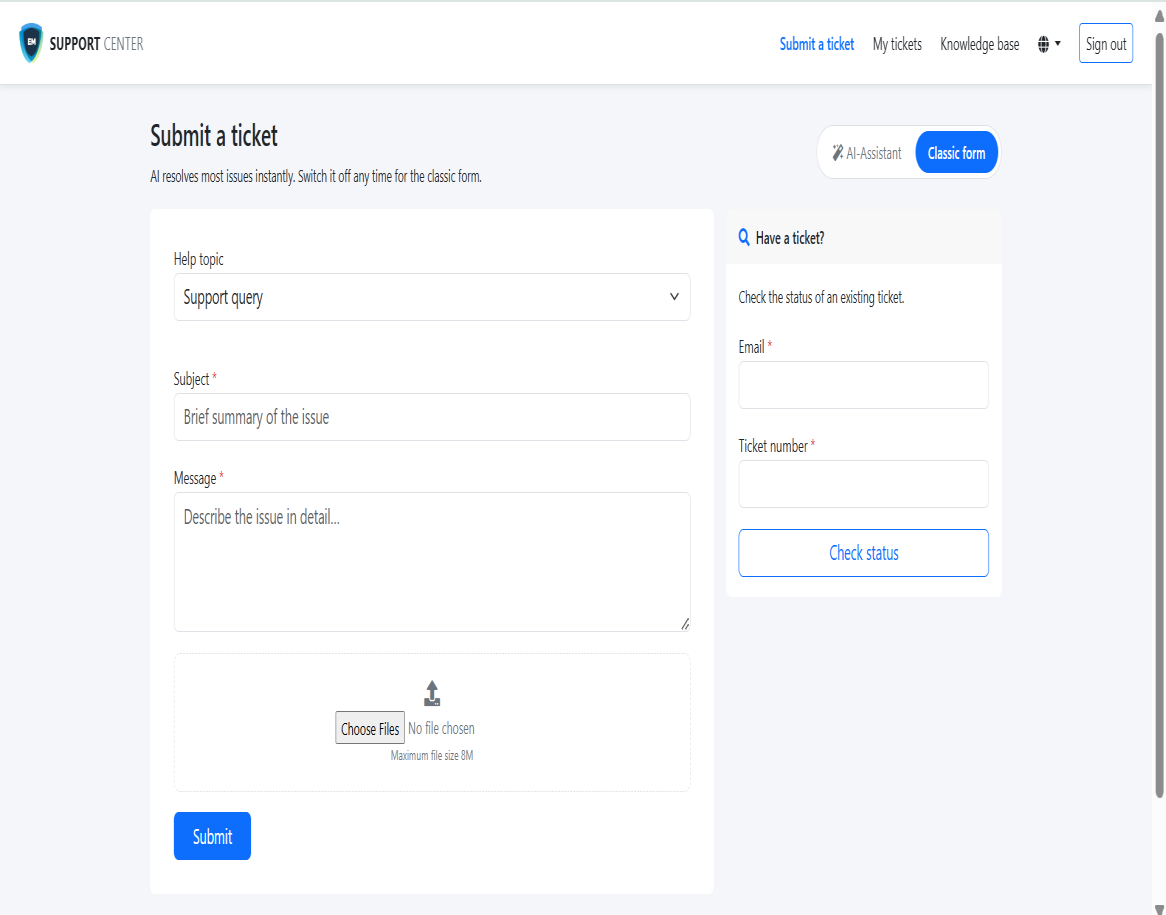
The Classic form includes: - Help topic — a drop-down for selecting the support category.
- Subject — a brief summary of your issue.
- Message — a detailed description.
- Choose Files — optional file attachment (maximum file size: 8 MB).
- Submit — sends the ticket to the support queue.
What to Expect After You Submit
There are three possible outcomes when you interact with the AI Assistant:
- Instant resolution via playbook
If your issue matches a configured playbook and the required integration is active, the assistant will execute the necessary steps and confirm that the issue has been resolved — all without human intervention. You do not need to wait for a technician.
- Guided answer from the knowledge base
If the assistant has been trained on relevant documents or FAQs, it will provide step-by-step instructions or information to help you resolve the issue yourself.
- Automatic ticket creation
If the assistant cannot resolve your issue — because no matching playbook or knowledge-base content exists — it will automatically create a support ticket on your behalf and confirm this in the chat. You can then expect the standard technician follow-up.
Tips for Best Results
- Be specific about your issue. For example, instead of "something is broken," try "I cannot log in to Outlook — my password is not accepted."
- Answer the assistant's follow-up questions. The more context you provide, the better the assistant can help.
- If the AI Assistant response is unhelpful, ask it to create a ticket and will turn the chat into ticket automatically.
Frequently Asked Questions
Do I need to do anything to activate the AI Assistant?
No. The AI Assistant is enabled automatically for all portal users. No setup is required.
Can I still submit a ticket the traditional way?
Yes. Click the Classic form tab at any time to use the standard ticket form.
What happens if the AI cannot solve my problem?
Ask the AI assistant to create a ticket. You will receive a confirmation in the chat, and a technician will follow up through the normal support process.
Is the AI Assistant available 24/7?
Yes. The AI Assistant is available at any time through the support portal, including outside of standard business hours.
Why is the AI Assistant giving a generic or incorrect answer?
The assistant's accuracy depends on the training content and integrations set up by your IT team.