


Integrations
Connect the ticketing and automation systems used by the Service Desk IT AI Agent.
Service Desk V2
Service Desk V2 is connected automatically for the Service Desk IT AI Agent. No additional credentials or manual connection steps are required for the default Service Desk integration.
With Service Desk V2 connected, the agent can use the ticketing workflow for supported operations such as creating, updating, and tracking support tickets.
Using Odoo Helpdesk instead of Service Desk V2
Only one ticket-management integration can be active at a time. To use Odoo Helpdesk, first disconnect or deactivate the existing Service Desk V2 integration.
- Open Integrations → Ticket Management.
- Disconnect or deactivate Service Desk V2.
- Select Odoo Helpdesk.
- Enter the credentials requested by Odoo.
- Complete the connection and verify that Odoo is shown as the active ticket-management integration.
Important: Service Desk V2 is the default ticket-management integration and is connected automatically. Odoo Helpdesk can be used as an alternative after Service Desk V2 is disconnected.
Office 365 and Google Workspace Automation
Connect identity/productivity platforms so the AI Agent can use their supported IT automation capabilities.
Open Integrations → Automations to connect the supported automation providers:
- Office 365 Automation — for supported Microsoft 365 / Office 365 user and account operations.
- Google Workspace — for supported Google Workspace user and access operations.
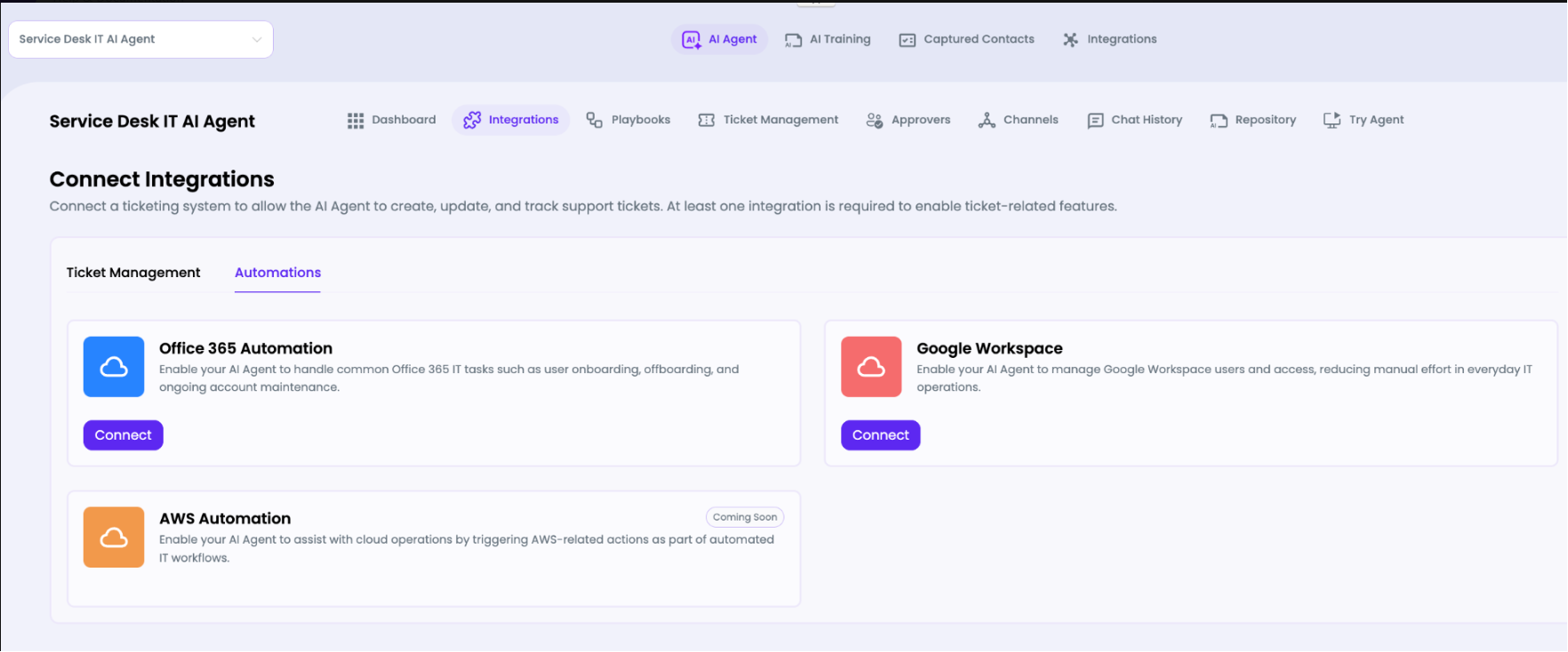

- Open Integrations.
- Select the Automations tab.
- Click Connect for Office 365 or Google Workspace.
- Complete the provider authentication and permission flow.
- Return to the agent and verify that the integration is connected.
- Open Playbooks to configure the tools that depend on that integration.
Important: A successful connection does not by itself define what the AI Agent will do. The available operations are controlled from the playbook and tool configuration.
Playbooks and Tools
Playbooks define when the agent should use automated actions and which tools are available to complete a request.
A playbook can contain a clear Name, Definition, and Trigger. A Require Approver option can be enabled when the workflow must wait for authorization before continuing.
How integration-dependent tools behave
The Tools panel reflects the integrations required by the selected playbook. When Office 365 is not connected, Office 365-dependent tools are disabled and the panel displays Connect Office 365. Examples of available operations include Change Password, Delete User, List Users, Update User, Create User, and List Groups.
This is the practical relationship between integrations and playbooks:


The left panel can contain multiple playbooks for different scenarios. Playbooks can be created for scenarios such as IT escalation fallback, Google Workspace user audit, Office 365 account operations, MFA recovery, and other IT workflows.
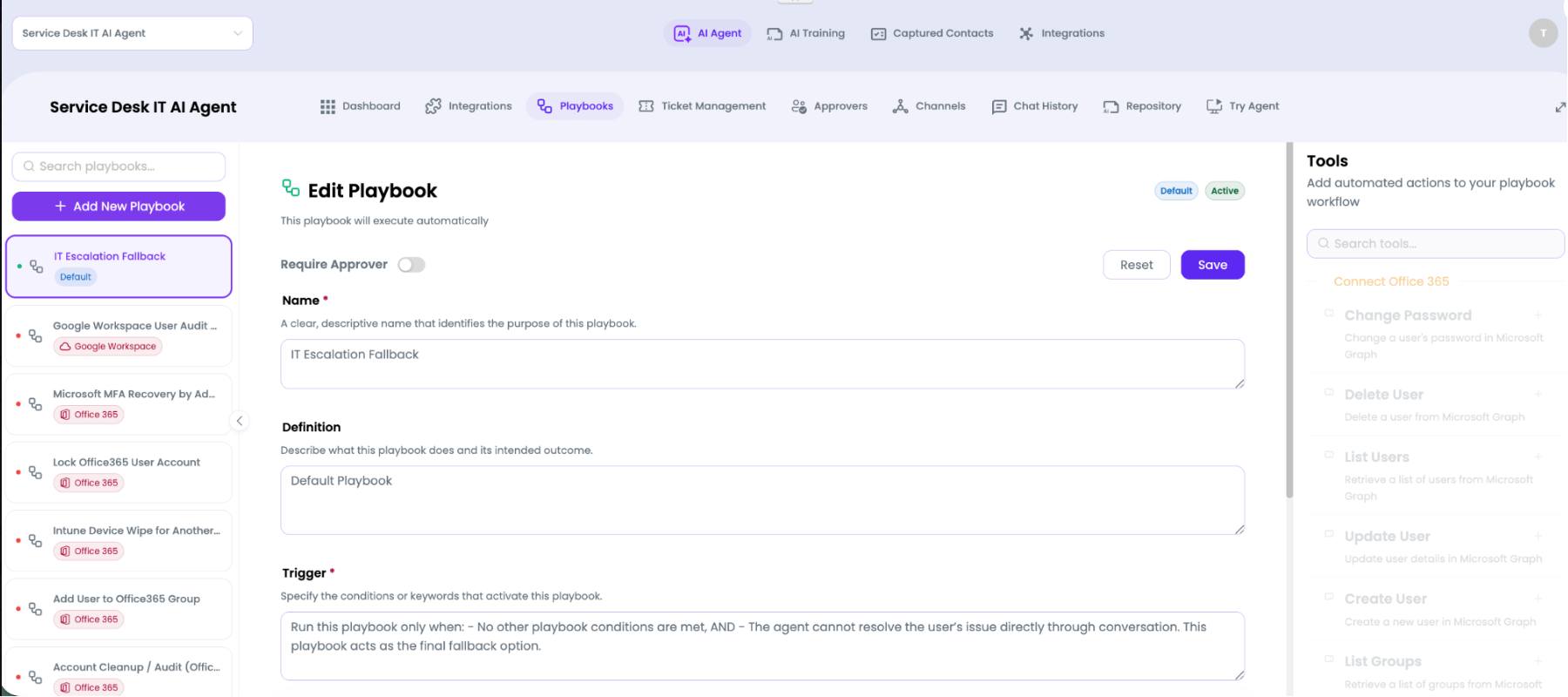

| Default fallback playbook - The agent includes a default IT Escalation Fallback playbook. Its trigger indicates that it runs when no other playbook conditions are met and the agent cannot resolve the user's issue directly through conversation. |
Approvals
Use approvals for workflows that should not complete automatically without authorization.
Approval handling appears in several parts of the agent:
- A playbook can enable Require Approver.
- The top navigation includes an Approvers area for approval configuration.
- The Dashboard shows Pending Approvals and allows the user to view approvals assigned to them.
- Ticket Management can display approval-related information for tickets generated by AI workflows.
Use approval requirements for operations where a human decision is necessary before the automation continues.
Channels
Channels determine where end users can communicate with the AI Agent.
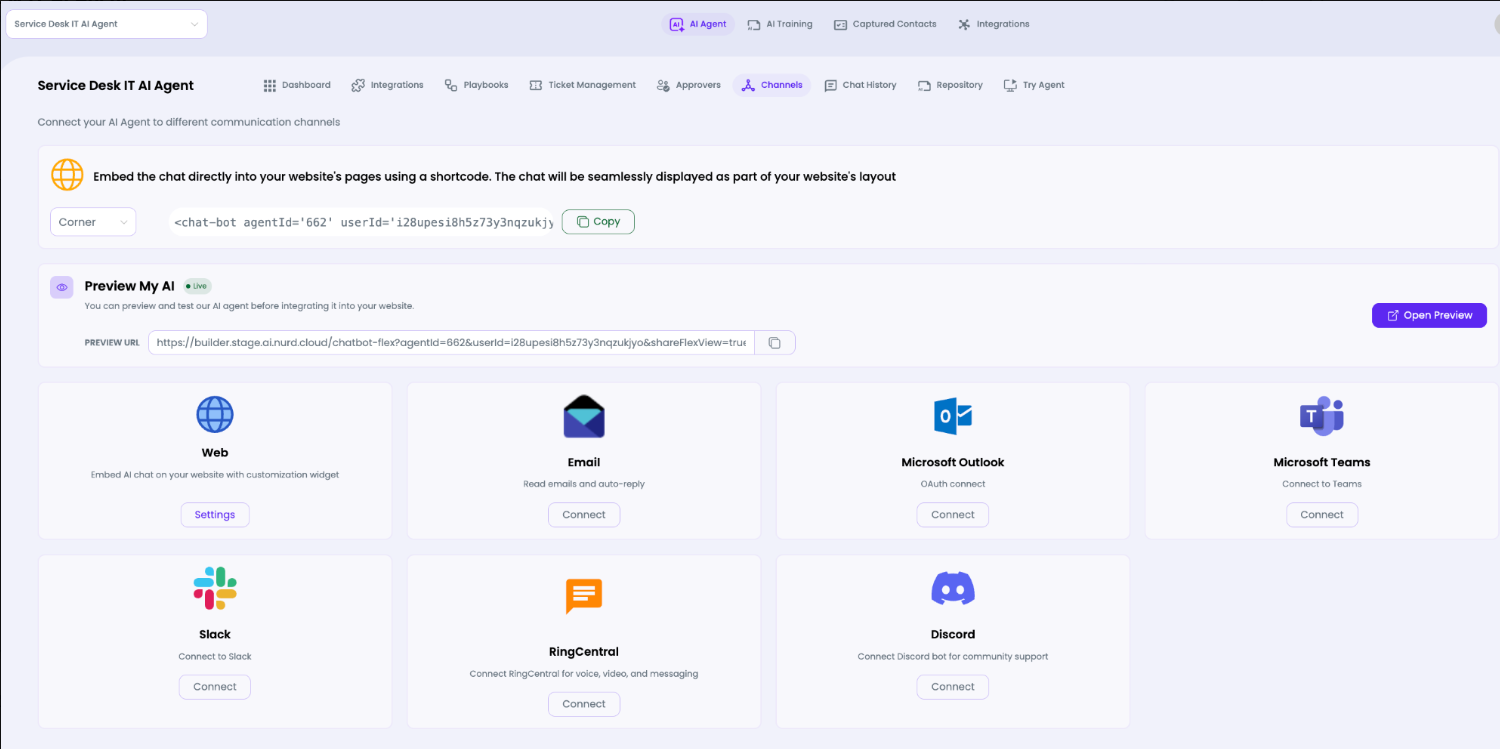
The supplied staging screen shows several available channel types:
- Web — embed the AI chat in a website.
- Email — connect an email-based channel.
- Microsoft Outlook
- Microsoft Teams
- Slack
- RingCentral
- Discord
Web channel
The Web section provides an embed shortcode, a position selector, and a copy action. A live Preview My AI area provides a preview URL and an Open Preview button so the agent can be tested before it is embedded into a production page.
- Open Channels.
- For Web, configure the widget position if required.
- Copy the generated embed snippet.
- Use Open Preview to test the conversation.
- For other channels, click Connect and complete the provider-specific setup.

Repository and AI Training
Provide organization-specific knowledge that the AI Agent can use during support conversations.
The agent workspace includes a Repository tab, while the Managed AI header also provides access to AI Training. Use these areas to manage the organization-specific materials that should be available to the AI.
Typical content can include IT policies, troubleshooting guides, onboarding/offboarding procedures, application instructions, password policies, VPN guides, FAQ documents, and internal support procedures.
Recommended practice
- Use current and authoritative documentation.
- Avoid duplicate or conflicting versions of the same procedure.
- Use clear titles and headings.
- Remove obsolete instructions promptly.
- After adding or updating material, test the agent with questions that specifically depend on that content.
| Knowledge vs. tools Repository/training tells the agent what it should know. Integrations and playbook tools determine what external systems it can use and what actions it can perform. |