


Agent Management — Channels
Connect your AI Agent to one or more communication channels so it can receive and respond to messages across your platforms — from your website to Slack or Microsoft Teams.

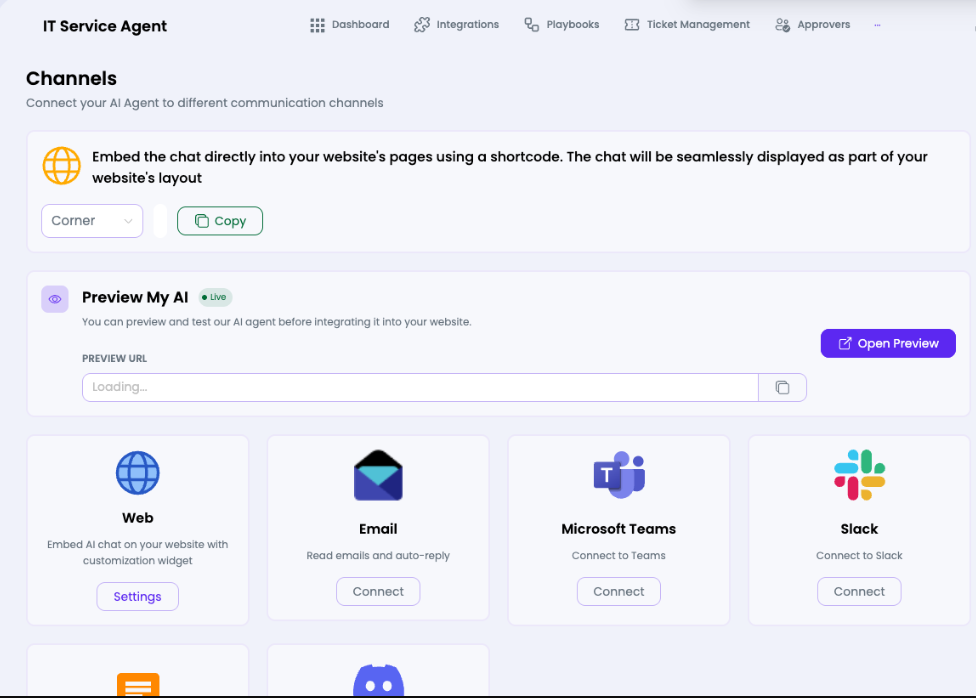
Available Channels
| Channel | Status | Description |
| Web | Available | Embed AI chat widget on your website. Customise position (Corner/etc.) and copy the embed shortcode. |
| Available | Connect an email inbox — agent reads emails and auto-replies. | |
| Microsoft Teams | Available | Connect to a Microsoft Teams channel. |
| Slack | Available | Connect to a Slack workspace. |
| Discord | Available | Connect to a Discord server. |
| RingCentral | Available | Connect via RingCentral messaging. |
How to Embed the Web Chat Widget
- In the Channels tab, locate the Web embed banner at the top.
- Select your preferred widget position from the Corner dropdown (Corner, Bottom, Full-page, etc.).
- Click Copy to copy the short code to your clipboard.
- Paste the short code into your website's HTML where you want the chat to appear.
Note: Use Open Preview - (beside the Preview URL field) to test how your agent looks and behaves before going live.
Use Live - The badge confirms the agent is active.
Use Live - The badge confirms the agent is active.