


Reporting
- Click 'Reporting' to open this interface.
The 'Reporting' tab holds twenty-three individual reports, arranged in five collapsible groups in the dark left sub-navigation, plus a standalone 'Exports' entry. Clicking a report name renders that single report in the content pane on the right.
You can open any single report, and you can download or remove the export files that have already been generated.
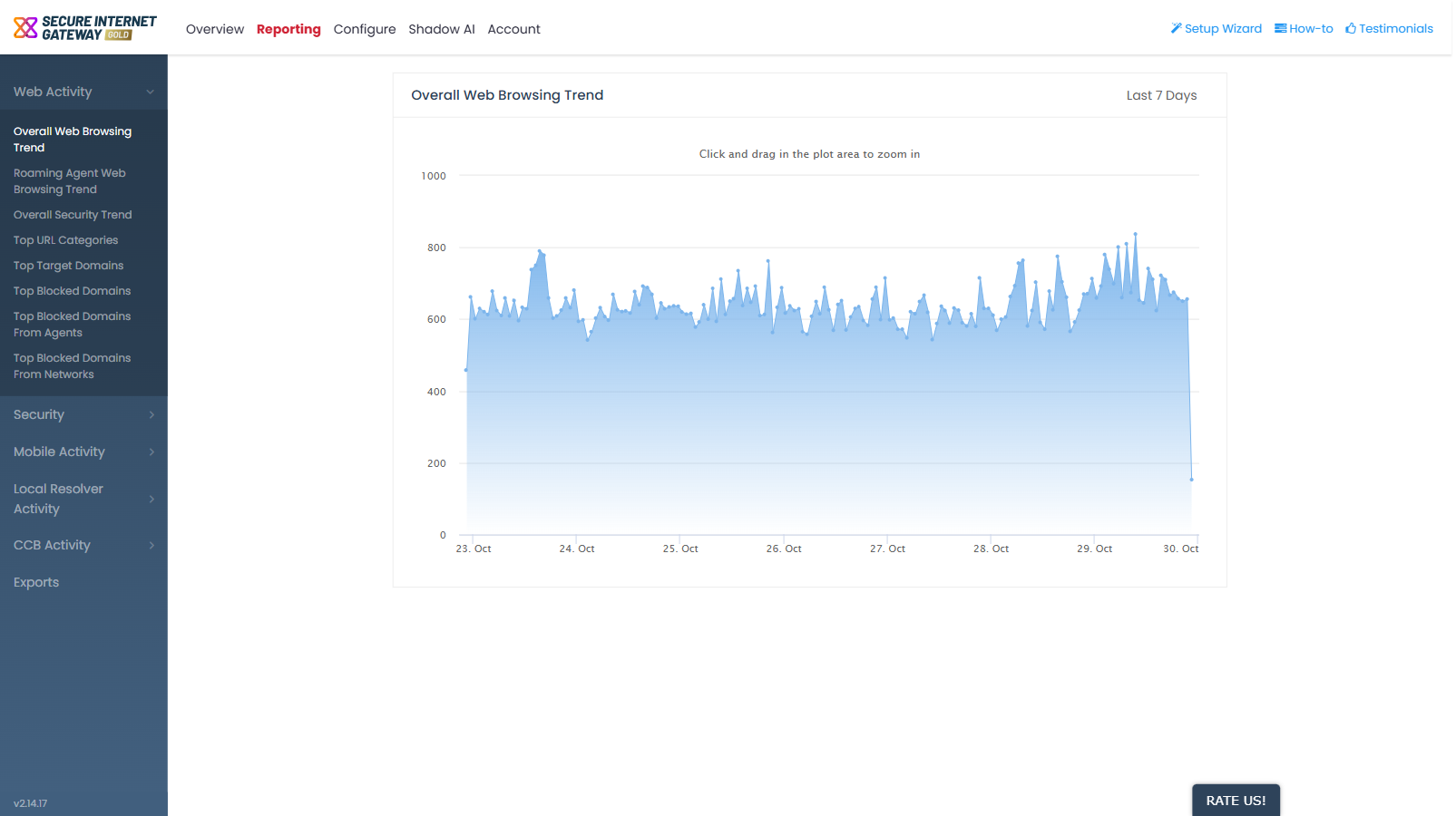
The report groups
| Group | Description |
| Web Activity | Eight reports on browsing volume, target domains, blocked domains and URL categories. |
| Security | Six reports on advanced threats and security incidents. |
| Mobile Activity | Three reports on your enrolled mobile users. |
| Local Resolver Activity | Three reports on traffic through your local resolver virtual appliances. |
| CCB Activity | Three reports on cloud browser sessions. |
| Exports | Not a report. The list of export files that have already been generated. |
The reporting period
Each report shows a 'Last 7 Days' label at the top-right of the content pane. The period is fixed at seven days on this tab and cannot be changed from here.
Note: to review a shorter window, use the dashboards on the 'Overview' tab, which offer periods from 12 hours to 7 days. See 'Page Through Widgets and Change the Reporting Period' for more details.
Reports whose title differs from the sub-navigation label
Five reports are titled differently in the content pane than in the sub-navigation. Use this table to match them up.
| Sub-navigation label | Title in the content pane |
| Sites - Most Blocked Threats | Most Blocked Threats of Local Resolver |
| Top Blocked Domains of Local Resolver | Top Blocked Categories of Local Resolver |
| Top Visited Sites | Top Visited Sites on CCB |
| Top Opened Sessions | Top Opened Sessions on CCB |
| File Status | File Download on CCB |
Open a report
- Click 'Reporting'.
- Click a group in the left sub-navigation to expand it.
- Click the report you want. It renders in the content pane on the right.