
ITarian Help

Find the desired product help

Secure Internet Gateway

Secure Internet Gateway

Admin Guide Version

English

Print Help
Secure Internet Gateway > Configure > Manage Policies
  • Secure Internet Gateway
    • Setup Wizard
      • Start The Setup Wizard
      • Step 1 - Add Your Network
      • Step 2 - Confirm Rules For Your Policy
    • Setup Guide
      • Set Up Your Network To Secure Internet Gateway
        • Step 1 - Add Network
        • Step 2 - Set DNS
        • Step 3 - Create Policy
        • Step 4 - Analyze
      • Set Up Your Roaming Endpoints
        • Step 1 - Download And Install The Agent
        • Step 2 - Anti-Tampering Password
        • Step 3 - Configure Policy
        • Step 4 - Analyze Logs
      • Protect Your Mobile Devices
    • Overview
      • View The Web Overview Dashboard
      • View The Security Overview Dashboard
      • Page Through Widgets And Change The Reporting Period
    • Reporting
      • View Web Activity Reports
      • Drill Into The 'Other' Slice On Top URL Categories
      • View Security Reports
      • View Mobile Activity Reports
      • View Local Resolver Activity Reports
      • View CCB Activity Reports
      • View And Manage Exports
    • Configure
      • Manage Policies
        • Create A Policy - Select Objects
        • Create A Policy - Settings
        • Update A Policy
        • Validate A Policy With Check Policy
        • Manage Domain Classification Requests
          • How Domain Classification Requests Work
          • Request A Category Change
          • Website Category Reference
      • Policy Settings
        • Manage Security Rules
          • Create A Security Rule - Name
          • Create A Security Rule - Settings
        • Manage Category Rules
          • Create A Category Rule - Name
          • Create A Category Rule - Settings
        • Manage Domain B/W Lists
          • Create A B/W List - Name
          • Create A B/W List - Settings
          • Block By Country Top-Level Domain
        • Manage Block Pages
          • Create A Block Page - Name
          • Create A Block Page - Single Page For All Blocked Domains
          • Create A Block Page - Different Pages Per Block Reason
          • Redirect Blocked Users To A URL
      • Objects
        • Manage Networks
          • Add A Network
          • Add A Network - Additional Settings
          • Add A Network With A Dynamic IP Address
        • Manage Roaming Devices
          • Set An Anti-Tampering Password
          • Download The Roaming Agent
          • Deploy The Roaming Agent Through Endpoint Manager
        • Manage Mobile Devices
          • Add A Mobile Device
    • Shadow AI
      • Shadow AI Summary
      • Discovered AI Tool Catalog
      • Top AI Devices, Mobile Agents And Networks
      • Recent AI Blocks
      • Export Shadow AI Data
      • Block AI Tools
      • How Shadow AI Counts Requests
    • View Account Information And Licences

Manage Policies


  • Click 'Configure' > 'Policy' to open this interface.


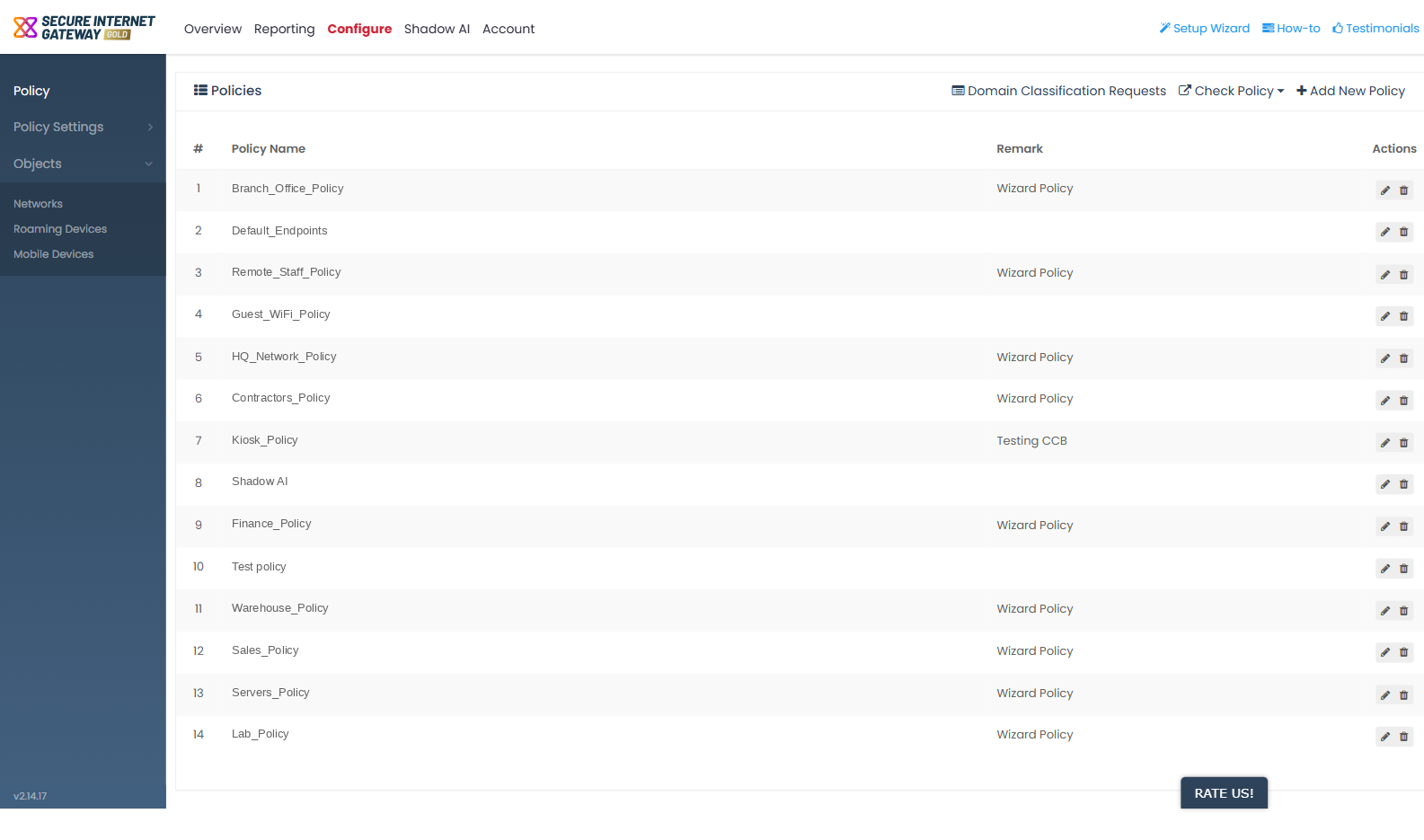
A policy ties one or more objects - networks, roaming devices and mobile agents - to the rules that apply to them. The 'Policies' screen lists every policy on the account.

You can create, edit and delete policies from this interface, open the domain classification request screen, and run the policy self-test links.
Secure_Internet_Gateway_1.png

Header controls

Three controls sit at the top right of the 'Policies' block.

  • 'Domain Classification Requests' - opens the screen where you ask Xcitium to reclassify a domain.

  • 'Check Policy' - a dropdown holding three links that test whether a policy is working.

  • 'Add New Policy' - opens the 'Add Policy' dialog.

Columns

Column Description
# The row number in the list.
Policy Name The name given to the policy.
Remark The free-text note saved with the policy. Policies created by the Setup Wizard carry the remark 'Wizard Policy'.
Actions The two row-action icons for the policy.

Row actions

Action Description
Pencil icon Opens the policy in the 'Update Policy' dialog.
Bin icon Opens the 'Delete Policy' confirmation for that policy.

Create a policy

  1. Click 'Add New Policy' at the top right of the 'Policies' block.

  2. The 'Add Policy' dialog opens on its 'Select Objects' tab.

  3. Complete 'Select Objects', then click 'Next' to complete 'Settings'.

Edit a policy

  1. Find the policy in the list.

  2. Click the pencil icon in its 'Actions' column.

  3. The 'Update Policy' dialog opens with the saved values already filled in.

Delete a policy

  1. Find the policy in the list.

  2. Click the bin icon in its 'Actions' column.

  3. The 'Delete Policy' confirmation opens, reading 'Do you want to delete this policy?'. It carries a 'Cancel' button.


Comodo Help
  • IT Platform:
  • Help
  • Scripts
  • Wiki
  • Forum
  • Developer
  • RMM
  • Patch Management
  • Service Desk
  • ITSM
  • Managed Service Provider
  • Managed Detection and Response
  • Ticketing System
  • Helpdesk
  • ITIL

Copyright 2026 Itarian