


Create a Block Page - Different Pages per Block Reason
- Click 'Configure' > 'Policy Settings' > 'Block Pages' > 'Add a New Block Page' > 'Next' > 'Show different pages for blocked domains' to open this interface.
Selecting 'Show different pages for blocked domains' replaces the single message box with three message boxes, one for each reason a domain can be blocked. Users then see a message that matches why the site was blocked.
You can write a separate message for each block reason and preview each version from this tab.
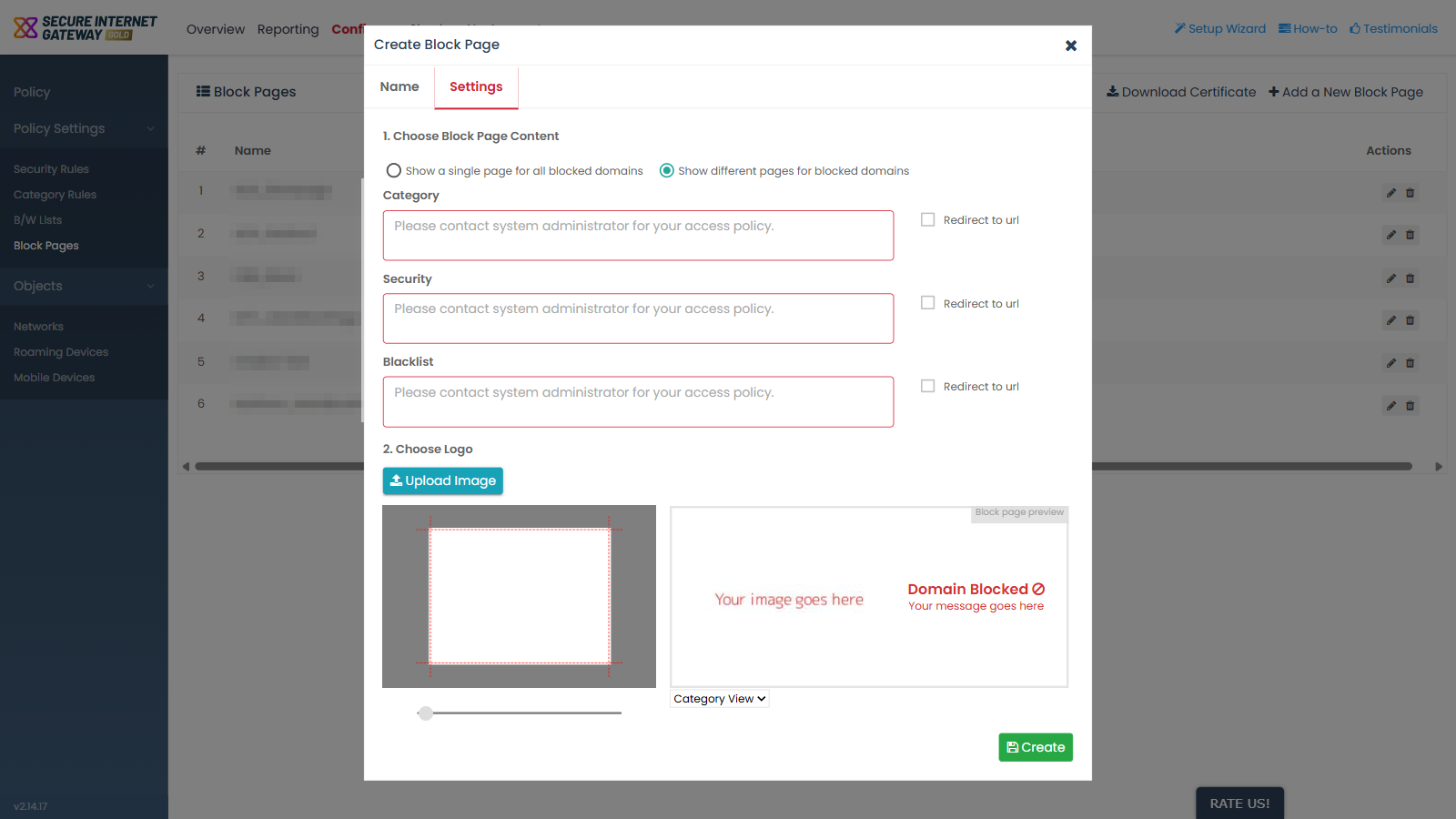
The three block reasons
| Block reason | Description |
| Category | The message shown when a domain is blocked by a category rule. |
| Security | The message shown when a domain is blocked by a security rule. |
| Blacklist | The message shown when a domain is blocked by a B/W list. |
Each of the three has its own message box, carrying the same placeholder text, 'Please contact system administrator for your access policy.', and its own 'Redirect to url' checkbox, cleared by default.
Preview control
When this option is selected, a dropdown appears above the 'Block page preview' to switch which version is shown. Its options are:
- 'Category View' - the default.
- 'Security View'
- 'Blacklist View'
Create a block page with a different message per reason
- Complete the 'Name' tab and click 'Next'.
- Select 'Show different pages for blocked domains'.
- Type the message for category blocks into the 'Category' message box.
- Type the message for security blocks into the 'Security' message box.
- Type the message for blacklist blocks into the 'Blacklist' message box.
- Use the dropdown above the preview to check each version in turn.
- Click 'Create'.