


Create a B/W List - Settings
- Click 'Configure' > 'Policy Settings' > 'B/W Lists' > 'Create B/W List' > 'Next' to open this interface.
The 'Settings' tab is where you decide whether the list allows or blocks, and then fill it with domains. You can also block whole country top-level domains from the same tab.
You can set the list type, add domains one at a time, and select country top-level domains from this tab.
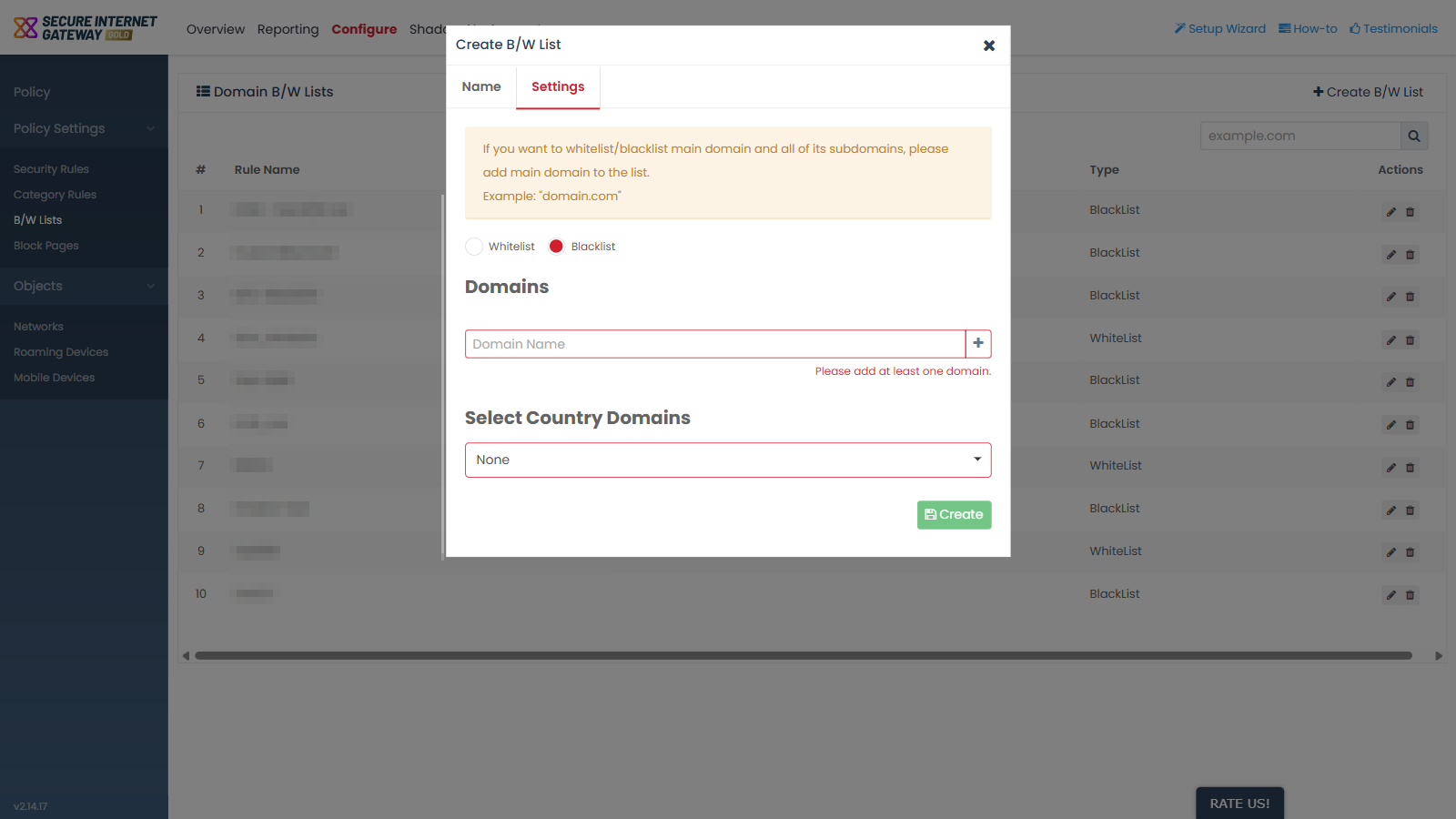
Field descriptions
| Field | Description | Options and default |
| List type | A radio pair that decides whether the domains in the list are always allowed or always blocked. | 'Whitelist' or 'Blacklist'. 'Blacklist' is selected by default. |
| Domain entry | Text box carrying the placeholder 'Domain Name'. Adds domains to the list one at a time. | No default. |
| Country selector | Multi-select picker. The button reads 'None' until you choose something. Applies the list to every domain under the selected country top-level domains. | 'None' by default. |
Dialog control
- 'Create' - saves the list.
Note: the list type can only be set while the list is being created. It is read-only in the update dialog, so you cannot turn a blacklist into a whitelist later. Create a new list instead.
Note: switching between 'Whitelist' and 'Blacklist' does not change the rest of the form. The same domain box and country selector are shown for both.
Build a B/W list
- Complete the 'Name' tab and click 'Next'.
- Select 'Whitelist' to always allow the domains in the list, or leave 'Blacklist' selected to always block them.
- Type a domain into the box marked 'Domain Name' and add it to the list.
- Repeat for each domain the list should hold.
- Click the country selector if you also want to act on whole country top-level domains.
- Click 'Create'.