


Create a Block Page - Single Page for All Blocked Domains
- Click 'Configure' > 'Policy Settings' > 'Block Pages' > 'Add a New Block Page' > 'Next' to open this interface.
The 'Settings' tab has two numbered sections and a live preview. '1. Choose Block Page Content' decides whether every blocked domain shows the same page or a different page per block reason. This topic covers the single-page option, which is selected by default.
You can write the message users see, add a logo, and check the result in the preview from this tab.
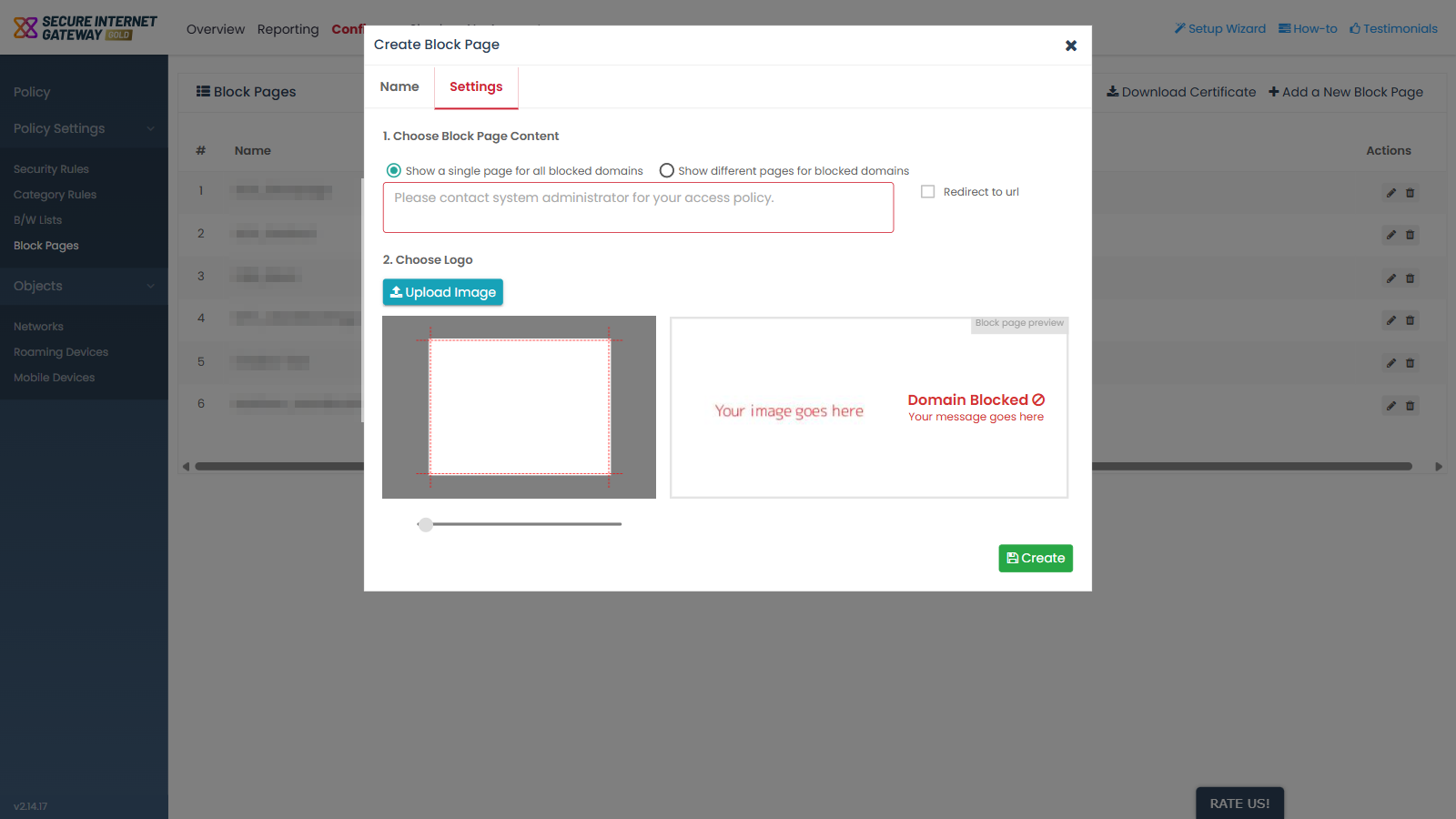
1. Choose Block Page Content
A pair of options:
- 'Show a single page for all blocked domains' - selected by default. Every blocked domain shows the same message.
- 'Show different pages for blocked domains' - shows a separate message per block reason. See 'Create a Block Page - Different Pages per Block Reason'.
Field descriptions
| Field | Description | Options and default |
| Message box | The text shown to the user on the block page. Its placeholder reads 'Please contact system administrator for your access policy.' | Empty by default. |
| Redirect to url | Checkbox. Ticking it replaces the message box with a URL field, so the user is sent to an address instead of seeing a message. | Cleared by default. |
2. Choose Logo
- 'Upload Image' - supplies the logo shown on the block page.
- A slider beside the logo resizes it in the preview.
Block page preview
The preview is a live rendering of the page as the user will see it. It is headed 'Domain Blocked', and its body reads 'Your message goes here' until you type a message.
Create a single block page for all blocked domains
- Complete the 'Name' tab and click 'Next'.
- Leave 'Show a single page for all blocked domains' selected.
- Type the message users should see into the message box.
- Click 'Upload Image' to add a logo, then use the slider to size it.
- Check the result in the 'Block page preview'.
- Click 'Create'.