


Manage Security Rules
- Click 'Configure' > 'Policy Settings' > 'Security Rules' to open this interface.
A security rule is a named set of threat categories to block. You attach a security rule to a policy on the policy's 'Settings' tab, and the same rule can be reused by any number of policies.
You can create, update and delete security rules from this interface.
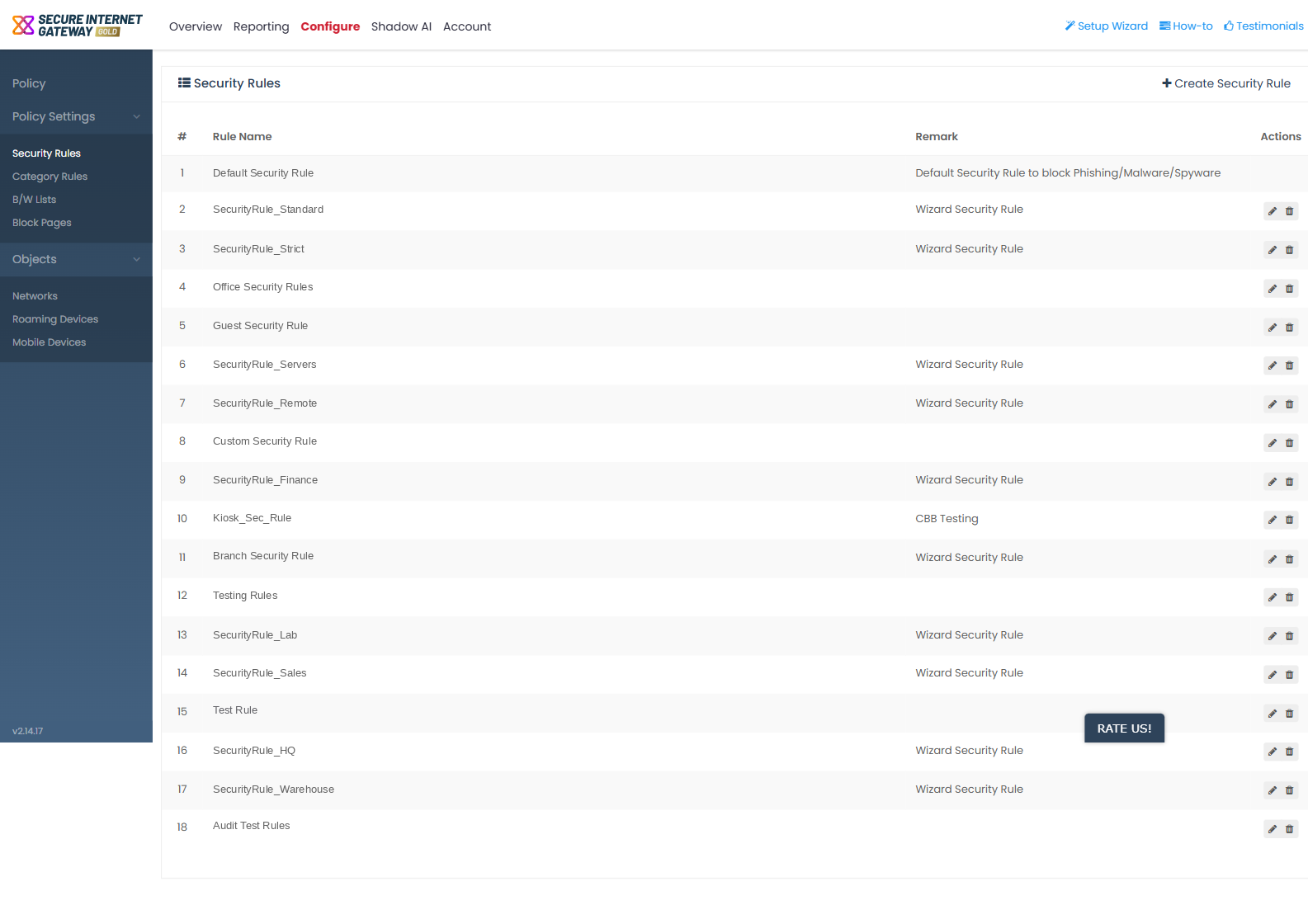
Column descriptions
| Column | Description |
| # | The row number in the list. |
| Rule Name | The name given to the security rule. |
| Remark | The note saved with the rule. Rules created by the Setup Wizard carry the remark 'Wizard Security Rule'. |
| Actions | The row-action icons for the rule. |
Row actions
- Pencil icon - opens the rule in an 'Update Security Rule' dialog.
- Bin icon - opens a 'Delete Security Rule' confirmation reading 'Do you want to delete this rule?', with a 'Cancel' button.
View and manage security rules
- Click 'Configure' > 'Policy Settings' > 'Security Rules'.
- Find the rule you want in the list.
- Click the pencil icon in the 'Actions' column to open the rule for editing.
- Click the bin icon in the 'Actions' column to remove the rule.
- Click 'OK' in the 'Delete Security Rule' confirmation to delete it, or 'Cancel' to keep it.
Note: the first row, 'Default Security Rule', has no action icons. This is the built-in rule that blocks phishing, malware and spyware sources, and its remark reads 'Default Security Rule to block Phishing/Malware/Spyware'. It cannot be edited or deleted. Every other row carries both icons.