


Set an Anti-Tampering Password
- Click 'Configure' > 'Objects' > 'Roaming Devices' > 'Anti-Tampering Password' to open this dialog.
An anti-tampering password controls whether the roaming agent can be uninstalled from an endpoint. With a password set, the agent asks for it before it will uninstall.
You can set, change or clear the password from this dialog.
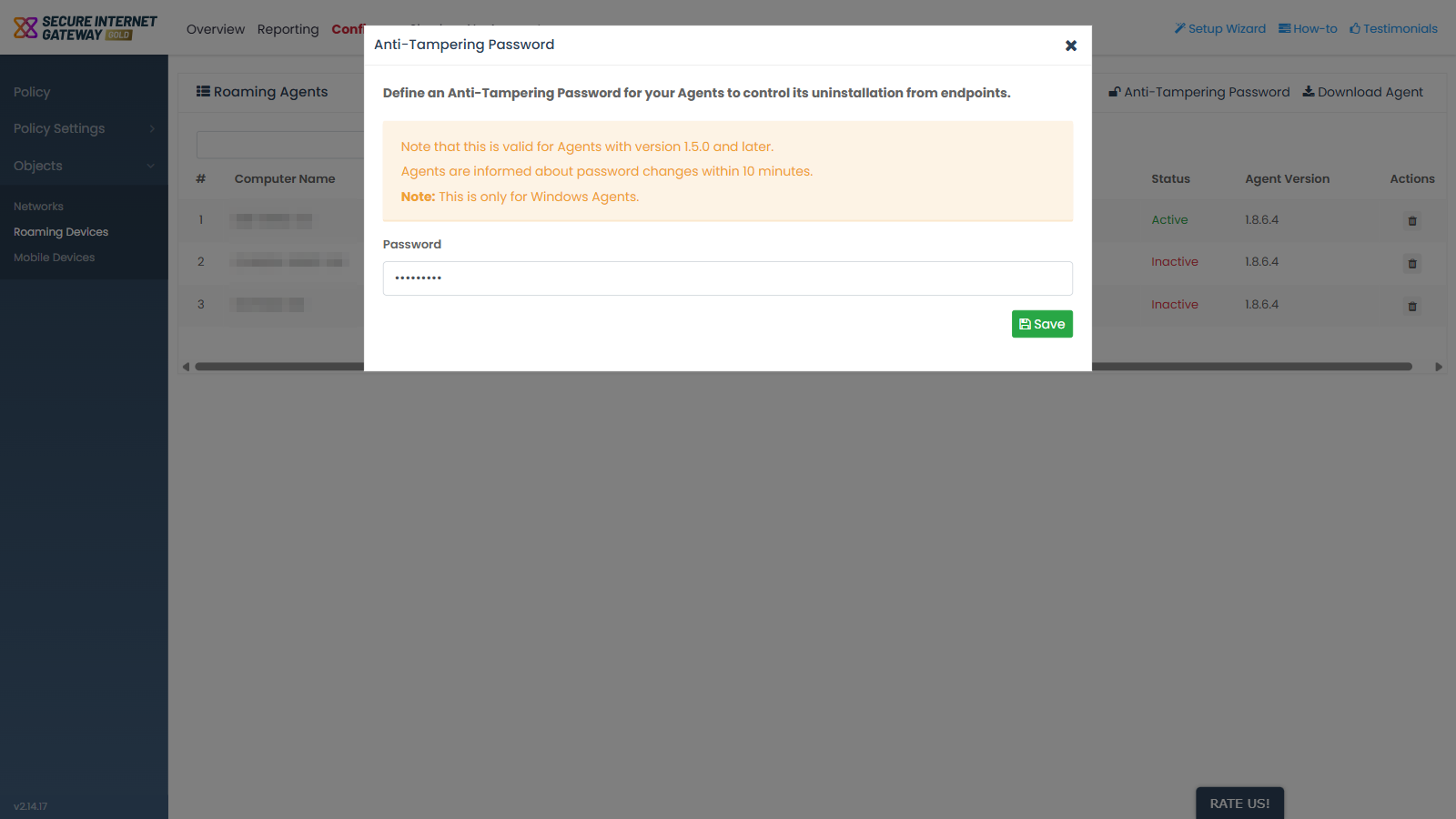
Fields
| Field | Description | Options and default | Required |
| Password | The anti-tampering password for your Windows roaming agents. The field is pre-filled with the password currently saved on the account. | Free text. Pre-filled with the current password. | Yes, to set a password |
Controls
- 'Save' - saves the password and sends it to the agents.
Set or change the password
- Click 'Configure' > 'Objects' > 'Roaming Devices'.
- Click 'Anti-Tampering Password'.
- Type the password into the 'Password' field, replacing any value already there.
- Click 'Save'.
Remove the password
- Open the 'Anti-Tampering Password' dialog.
- Clear the 'Password' field.
- Click 'Save'.
Note: the agents pick up a password change within 10 minutes. The password applies to Windows agents only, and only to agents running version 1.5.0 or later.
Note: this field shows the current password in readable text. Treat the password as a secret.