


Manage Domain Classification Requests
- Click 'Configure' > 'Policy' > 'Domain Classification Requests' to open this interface.
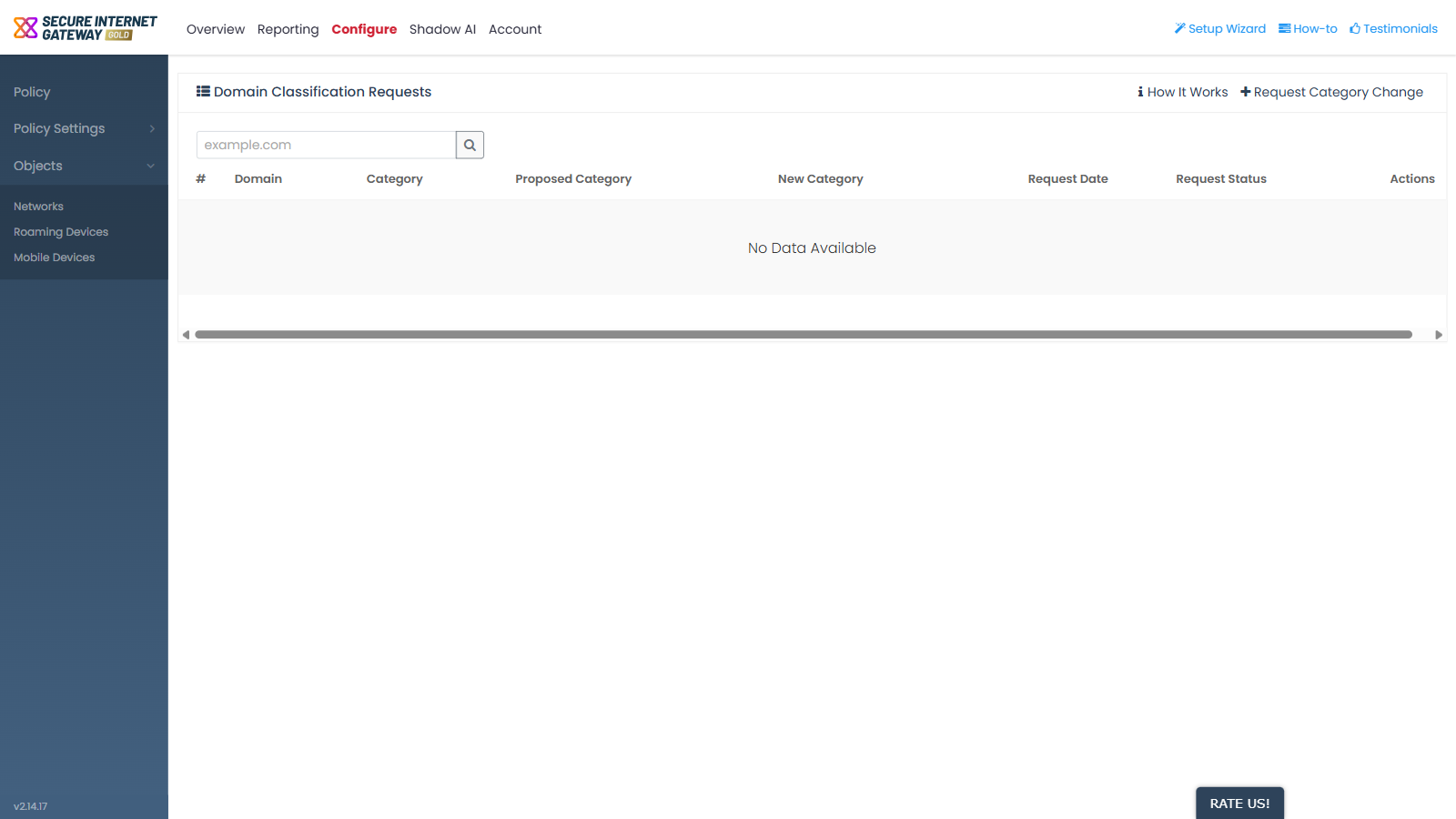
Use this screen to ask Xcitium to reclassify a domain, and to track the requests you have already raised. It is reached from the link in the header of the 'Policies' block; it is not in the left sub-navigation.
You can search your existing requests, read how the process works, and raise a new request.
Search
A text box above the list, with the placeholder 'example.com', filters the list by domain.
Columns
| Column | Description |
| # | The row number in the list. |
| Domain | The domain the request is about. |
| Category | The category the domain is classified under today. |
| Proposed Category | The category you asked for. |
| New Category | The category the domain ended up in after the request was processed. |
| Request Date | The date you raised the request. |
| Request Status | Where the request has got to. |
| Actions | The row-action icons for the request. |
Raise a request
- Click 'Configure' > 'Policy'.
- Click 'Domain Classification Requests' in the header of the 'Policies' block.
- Click 'Request Category Change'.
- Complete the dialog and click 'Submit'.