


Add a Network with a Dynamic IP Address
- Click 'Configure' > 'Objects' > 'Networks' > 'Add New Network', then tick 'is Dynamic ?'.
Use this when the site's public IP address changes. Ticking 'is Dynamic ?' disables the 'IPv4 Address / FQDN' field and reveals the Dynamic IP Updater panel, because the address is reported by an agent instead of being typed in.
You can read the guidelines and download the updater agent from this panel.
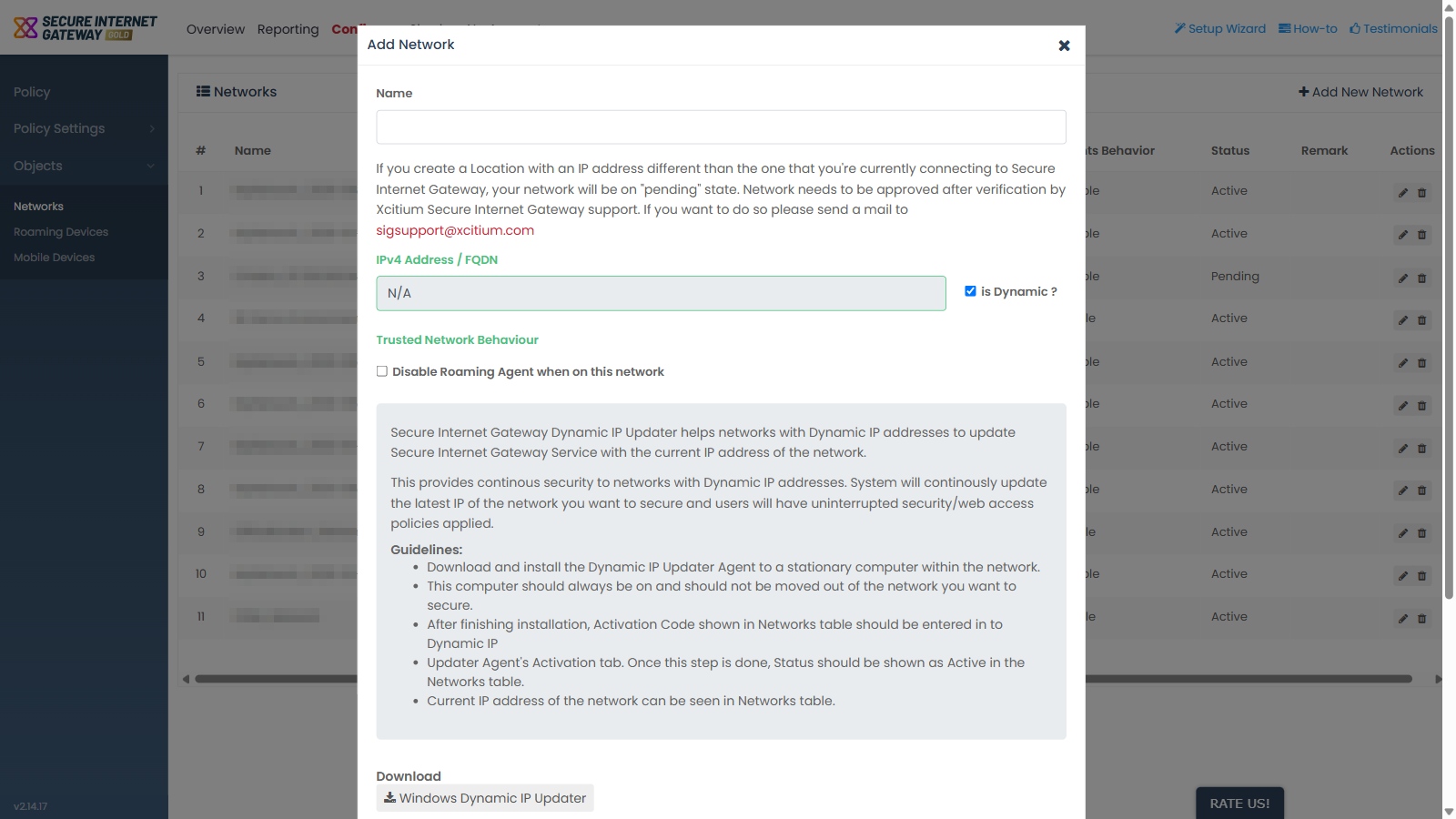
Guidelines
- Download and install the Dynamic IP Updater Agent on a stationary computer inside the network.
- Keep that computer always on, and do not move it out of the network.
- After installing, open the updater agent's 'Activation' tab and enter the Activation Code shown in the Networks table.
- Check the Networks table. The status then shows 'Active'.
- Read the network's current IP address in the Networks table.
Download control
- 'Download' > 'Windows Dynamic IP Updater' - the download link for the updater agent.
Note: 'Dynamic IP Activation Code' in the Networks list holds the code referred to in step 3. It shows 'N/A' for a static network.
See 'Manage Networks' for the columns that report the dynamic network's state, and 'Add a Network' for the other fields on this dialog.