


Add a Network
- Click 'Configure' > 'Objects' > 'Networks' > 'Add New Network' to open this dialog.
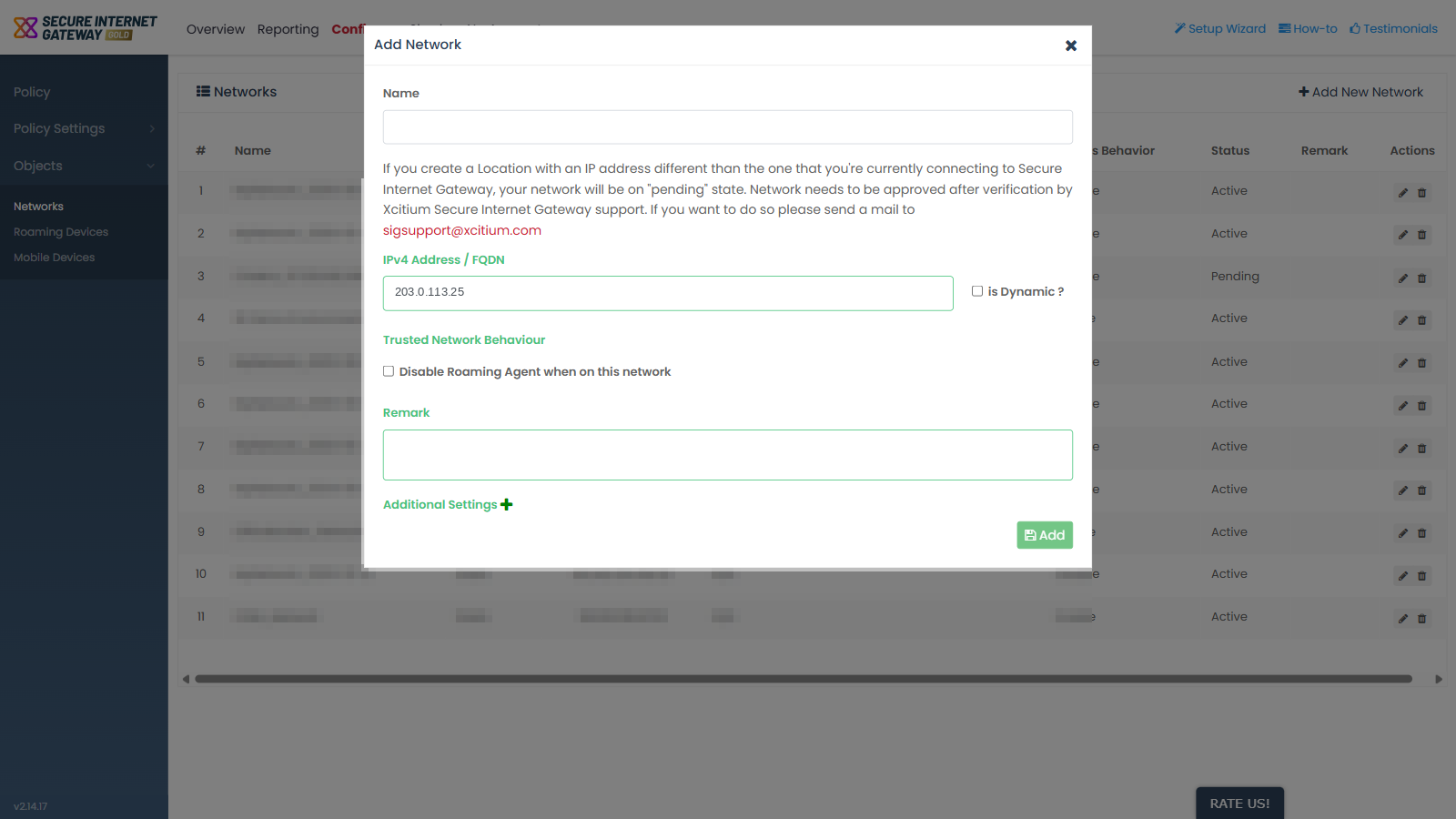
'Add Network' is a single-step dialog. It registers a site with Secure Internet Gateway so that a policy can be applied to it.
You can name the network, set its address, control how roaming agents behave on it, and save a note.
Before you start
The dialog carries this notice: 'If you create a Location with an IP address different than the one that you're currently connecting to Secure Internet Gateway, your network will be on 'pending' state. Network needs to be approved after verification by Secure Internet Gateway support. If you want to do so please send a mail to sigsupport@xcitium.com'.
Fields
| Field | Description | Options and default | Required |
| Name | The label for the network. This is what the 'Name' column shows in the list. | Free text. Empty by default. | Yes |
| IPv4 Address / FQDN | The public address of the site. This field is pre-filled with the public IP address you are browsing from. It becomes read-only when you tick 'is Dynamic ?'. | An IPv4 address or an FQDN. Pre-filled with your current public IP address. | Yes |
| is Dynamic ? | Marks the network as having a changing public address. Ticking it disables the address field and reveals the Dynamic IP Updater panel. | Checkbox. Cleared by default. | No |
| Disable Roaming Agent when on this network | Sits under 'Trusted Network Behaviour'. This is what the list's 'Agents Behavior' column reports. | Checkbox. Cleared by default. | No |
| Remark | A free-text note saved with the network and shown in the 'Remark' column. | Multi-line text. Empty by default. | No |
Add a network
- Click 'Configure' > 'Objects' > 'Networks'.
- Click 'Add New Network'.
- Type a name in 'Name'.
- Check the address in 'IPv4 Address / FQDN', and change it if you are registering a different site.
- Tick 'Disable Roaming Agent when on this network' if you want roaming agents to stand down while on this network.
- Type a note in 'Remark' if you want one.
- Click 'Add'.
Note: if the address you entered is not the address you are connecting from, the network is saved with the status 'Pending' and stays that way until Xcitium support verifies it.