


Setup Wizard
- Click 'Setup Wizard' on the console header to open this interface.
The Setup Wizard gets a network protected in three short steps. You enter the network, review the recommended rules, and then change your DNS to point at Secure Internet Gateway.
You can move forward and back through the wizard, or leave it at any point.
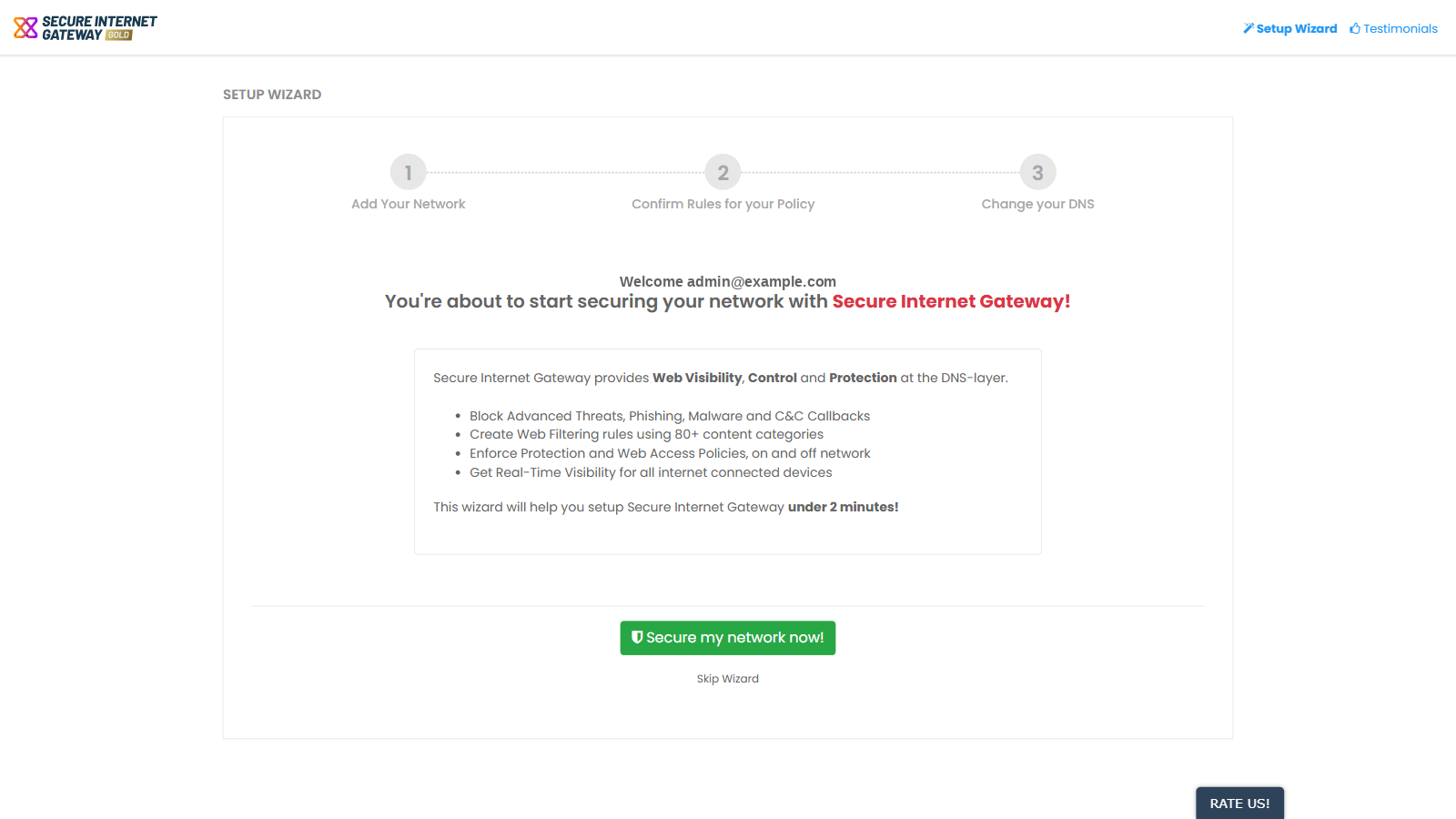
The steps
The step bar at the top of the wizard shows three steps:
- 'Add Your Network' - enter the IP address or FQDN of the network you want to protect.
- 'Confirm Rules for your Policy' - review the recommended threat and website category rules.
- 'Change your DNS' - point the network's DNS at Secure Internet Gateway.
A 'Skip Wizard' link under every step leaves the wizard.
After you confirm step 2, set your network's DNS to the Secure Internet Gateway addresses. See 'Step 2 - Set DNS' under 'Set Up Your Network to Secure Internet Gateway' for how to do this.