


Manage Domain B/W Lists
- Click 'Configure' > 'Policy Settings' > 'B/W Lists' to open this interface. The screen heading reads 'Domain B/W Lists'.
A B/W list is a named list of domains that is either always allowed (a whitelist) or always blocked (a blacklist). A list can also block whole country top-level domains. You attach a B/W list to a policy on the policy's 'Settings' tab.
You can create, update and delete domain black and white lists from this interface.
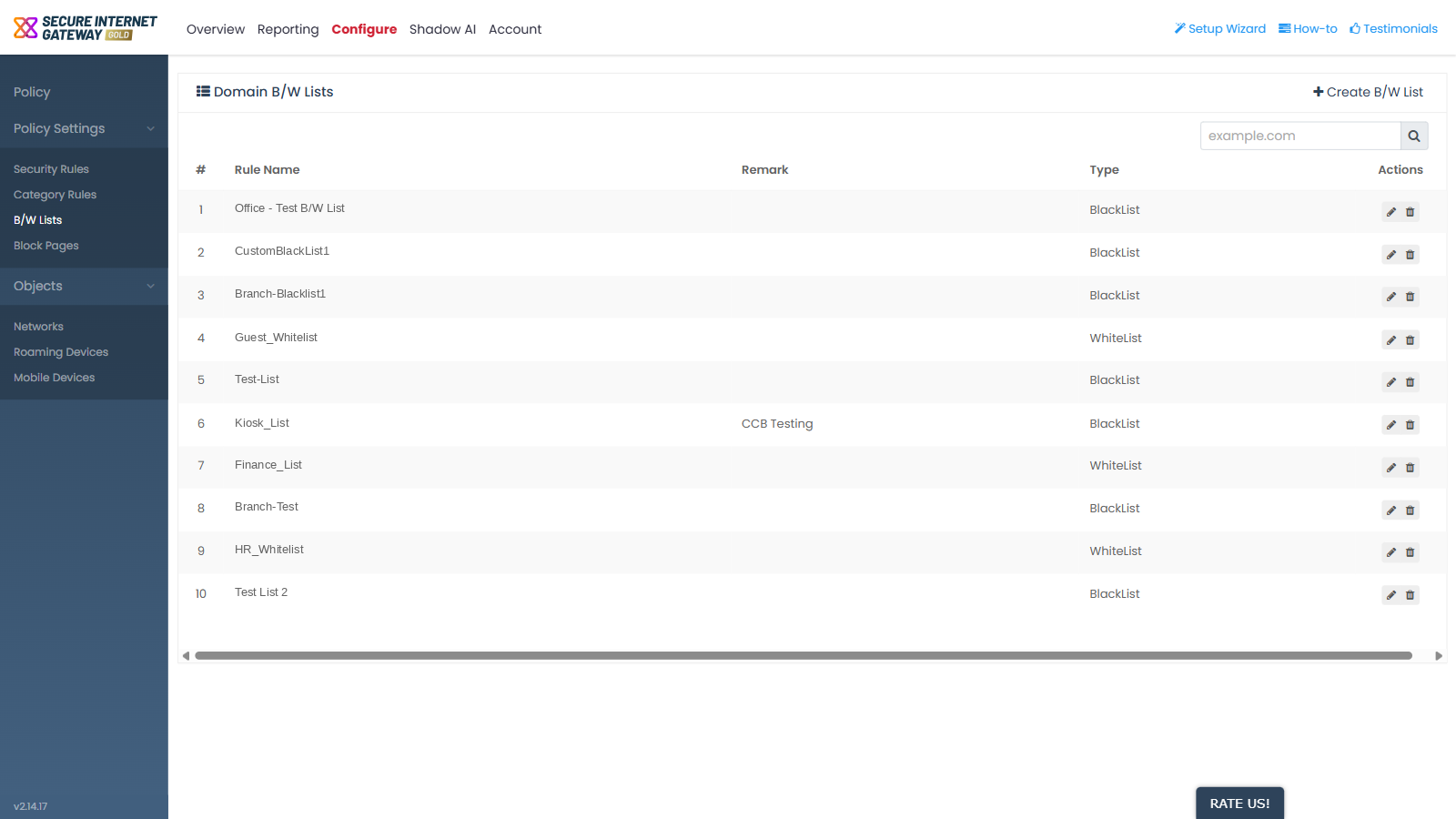
Header control
- 'Create B/W List' - opens the 'Create B/W List' dialog.
Column descriptions
| Column | Description |
| # | The row number in the list. |
| Rule Name | The name given to the B/W list. |
| Remark | The note saved with the list. |
| Type | Whether the list allows or blocks the domains it holds. Shows 'WhiteList' or 'BlackList'. |
| Actions | The row-action icons for the list. |
Row actions
- Pencil icon - opens the list in an update dialog.
- Bin icon - opens a delete confirmation with a 'Cancel' button.
View and manage B/W lists
- Click 'Configure' > 'Policy Settings' > 'B/W Lists'.
- Find the list you want in the 'Rule Name' column.
- Check the 'Type' column to confirm whether it is a whitelist or a blacklist.
- Click the pencil icon in the 'Actions' column to open the list for editing.
- Click the bin icon in the 'Actions' column to remove the list, then confirm the deletion.
Note: the 'Type' of a list is fixed when the list is created and cannot be changed afterwards. See 'Create a B/W List - Settings' for more details.