


Add a Mobile Device
- Click 'Configure' > 'Objects' > 'Mobile Devices' > 'Add New Mobile Device' to open this dialog.
'ADD MOBILE DEVICE' is a single-step dialog that emails the Secure Internet Gateway VPN profile to one or more mobile users.
You can invite several users at once and choose what the invitation contains.
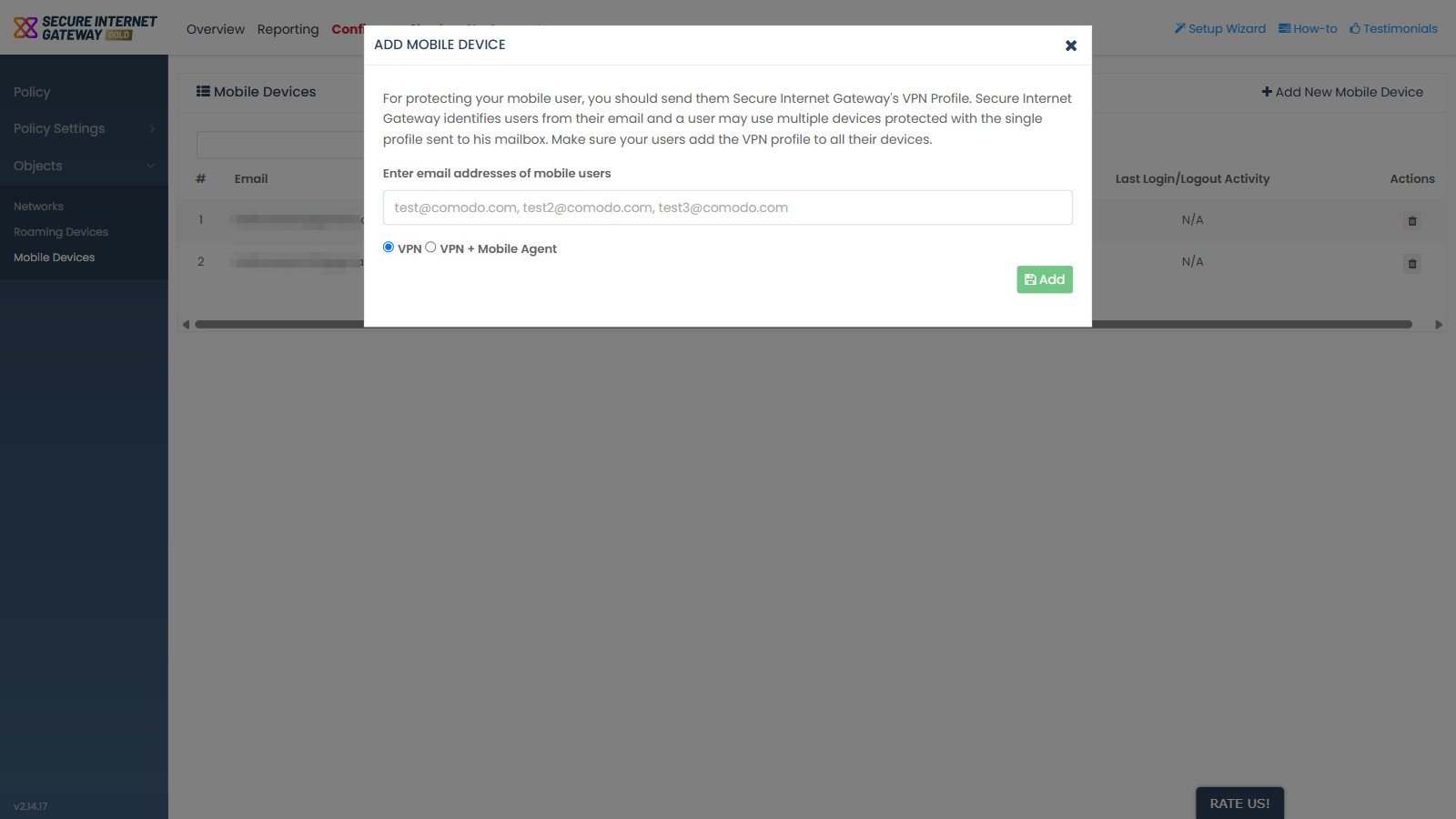
Fields
| Field | Description | Options and default | Required |
| Enter email addresses of mobile users | The addresses to send the invitation to. Separate several addresses with commas. The placeholder shows the expected format. | Comma-separated email addresses. Empty by default. | Yes |
| Mode | Chooses what the invitation contains. | A radio pair, 'VPN' or 'VPN + Mobile Agent'. 'VPN' is selected by default. | Yes |
Controls
- 'Add' - sends the invitation and adds the users to the 'Mobile Devices' list.
Invite mobile users
- Click 'Configure' > 'Objects' > 'Mobile Devices'.
- Click 'Add New Mobile Device'.
- Type the email addresses into 'Enter email addresses of mobile users', separating them with commas.
- Select 'VPN' or 'VPN + Mobile Agent'.
- Click 'Add'.
- Check the 'Mobile Devices' list. Each invited address is added as a row.
Note: an address that is invited for the first time returns 'Success'. An address that is invited again returns 'Already Exists'.