


Create a Policy - Select Objects
- Click 'Configure' > 'Policy' > 'Add New Policy' to open this interface.
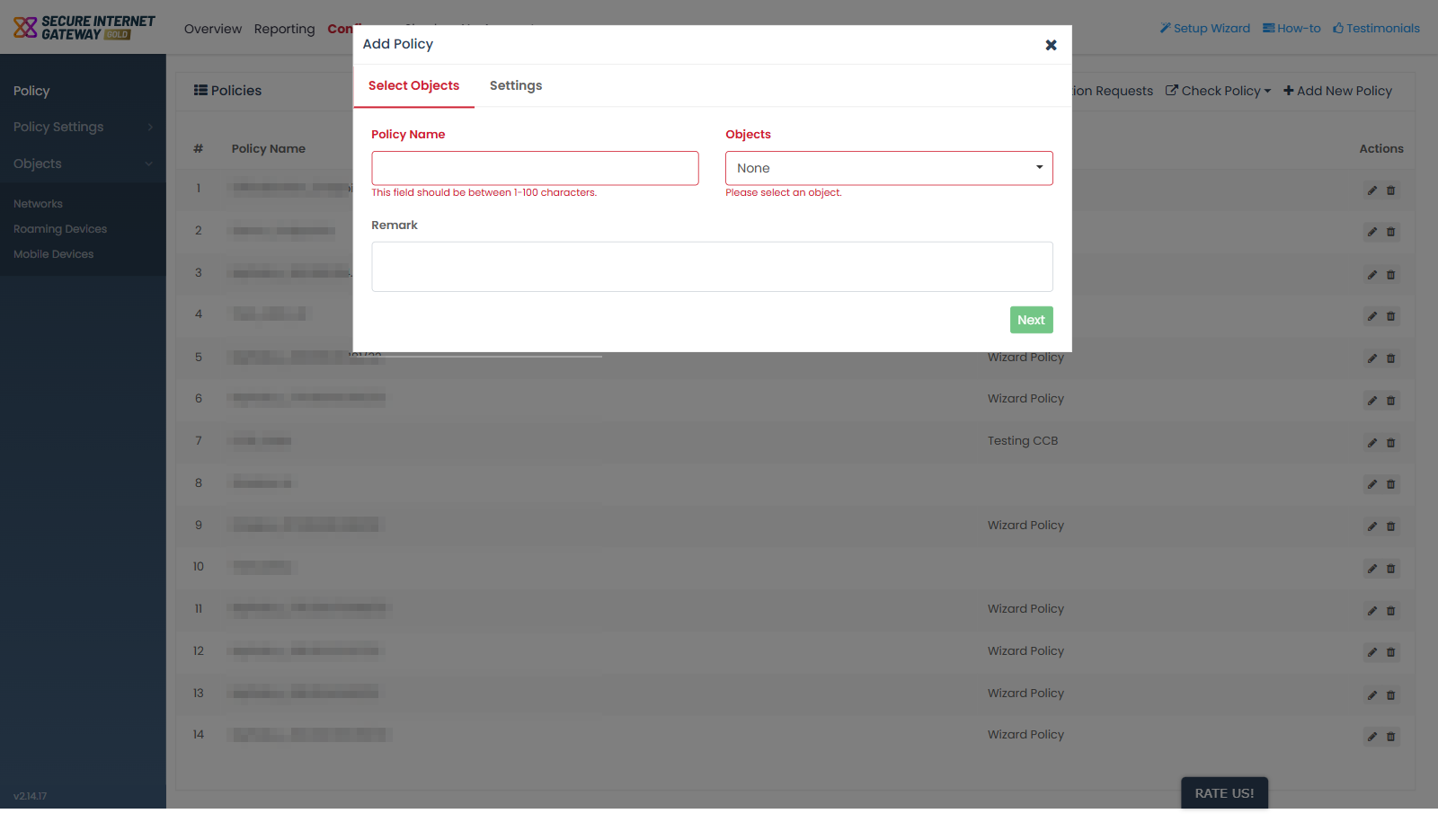
'Add New Policy' opens a dialog titled 'Add Policy' with two tabs, 'Select Objects' and 'Settings'. 'Select Objects' is the first tab; it names the policy and chooses what the policy applies to.
You name the policy, pick the objects it covers, add an optional note, then move to the 'Settings' tab.
Fields
| Field | Description | Default | Required |
| Policy Name | A text box for the name of the policy. The hint under the field reads 'This field should be between 1-100 characters.' | Empty | Yes |
| Objects | A multi-select listing everything the policy can be applied to. The control is a button that reads 'None' until you choose something. | None | Yes |
| Remark | A multi-line text box for a free-text note about the policy. | Empty | No |
Choose the objects
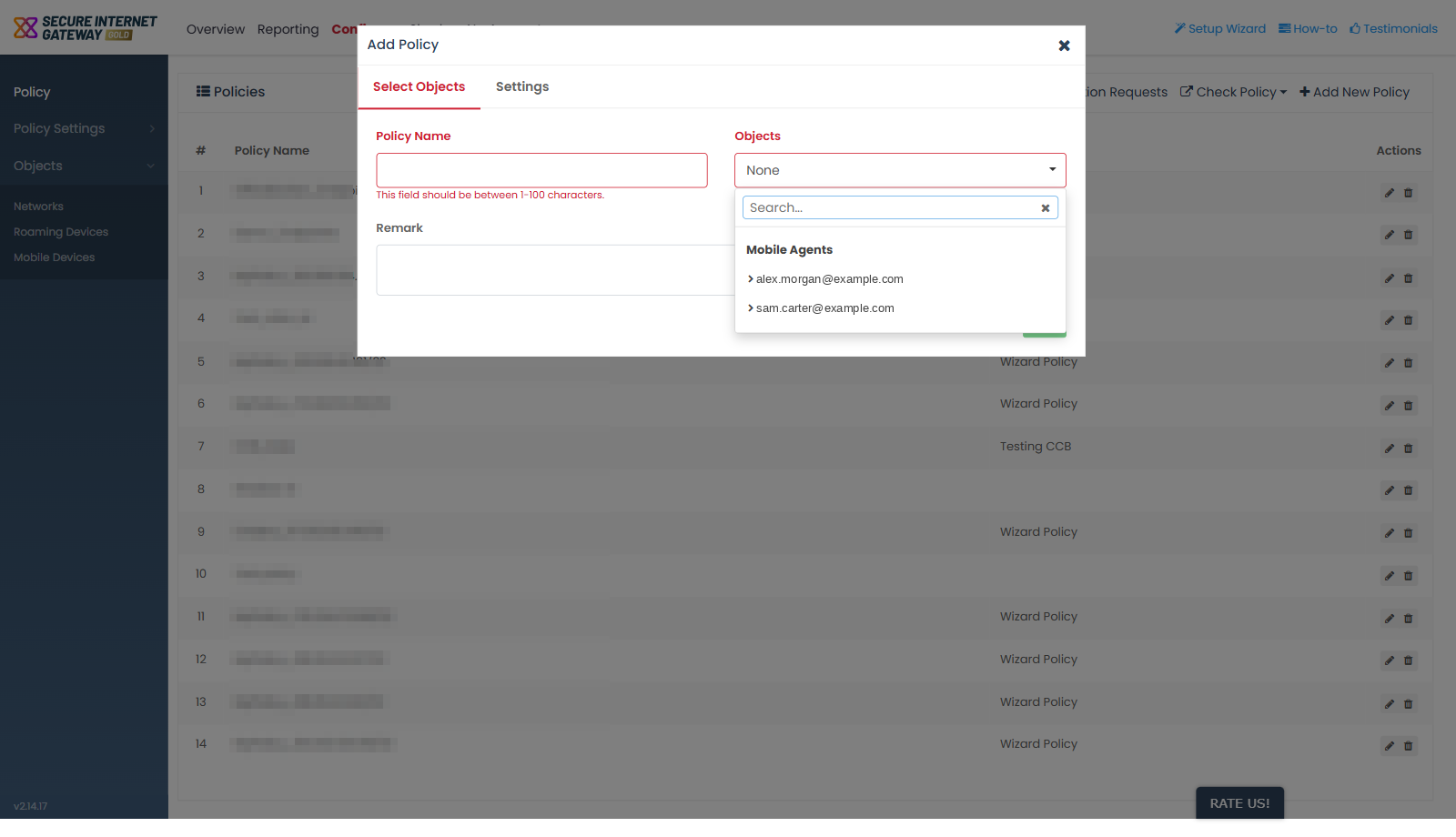
- Click the 'Objects' button, which reads 'None' until a selection is made.
- The picker opens with a 'Search...' box at the top and a clear button that empties the search.
- Type in 'Search...' to narrow the list, or scroll it.
- Tick the objects the policy should cover. Objects are grouped by type, for example 'Mobile Agents'.
Validation
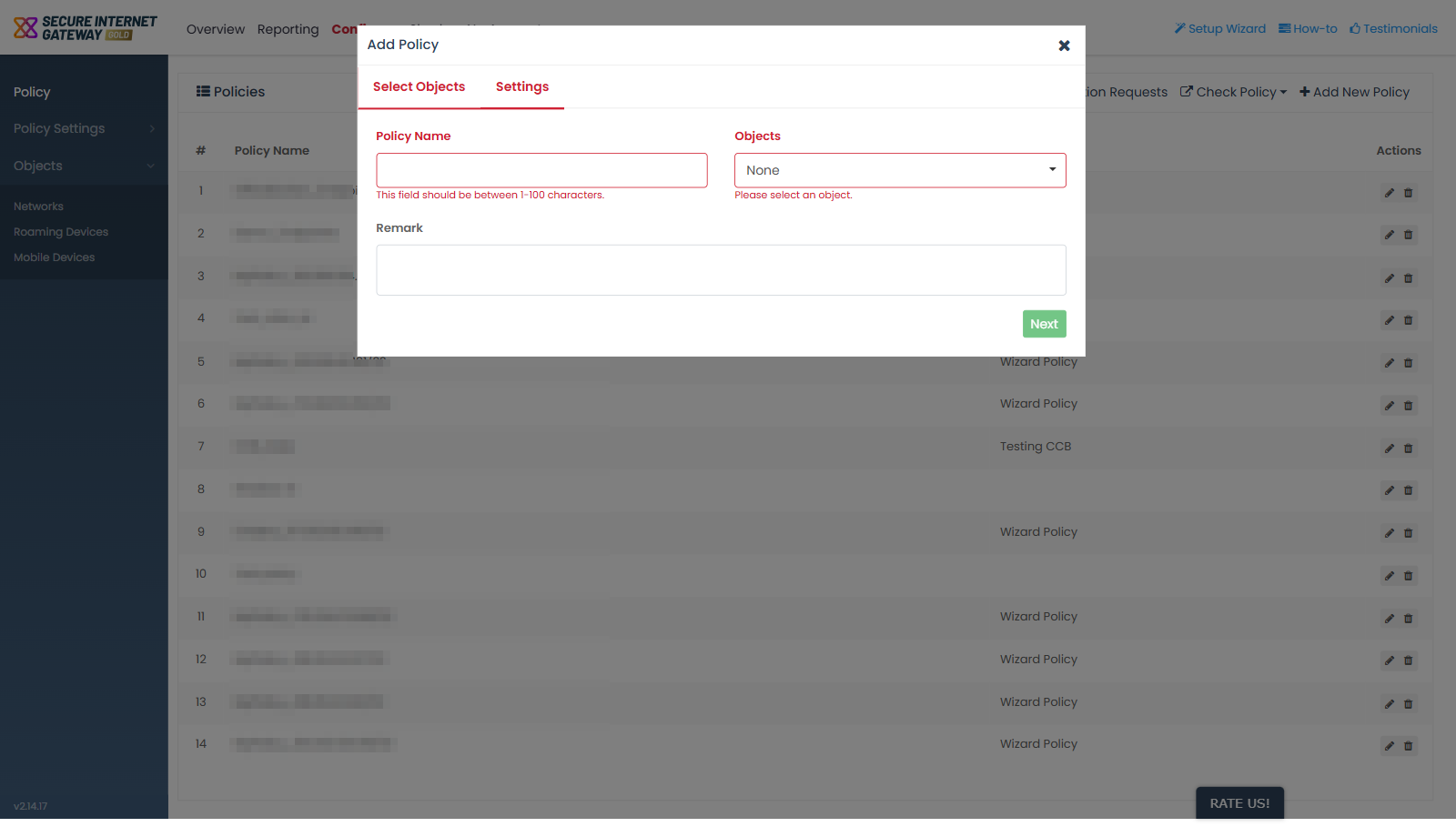
The 'Settings' tab cannot be reached until 'Select Objects' is valid. Clicking 'Settings' before then does not change tab; it simply reveals the validation messages on this tab.
- 'Policy Name' empty or out of range - 'This field should be between 1-100 characters.'
- 'Objects' left empty - 'Please select an object.'
Move to the Settings tab
- Type a name in 'Policy Name'.
- Click 'Objects' and tick at least one object.
- Type a note in 'Remark' if you want one.
- Click 'Next', the green button at the bottom right of the dialog.