


Redirect Blocked Users to a URL
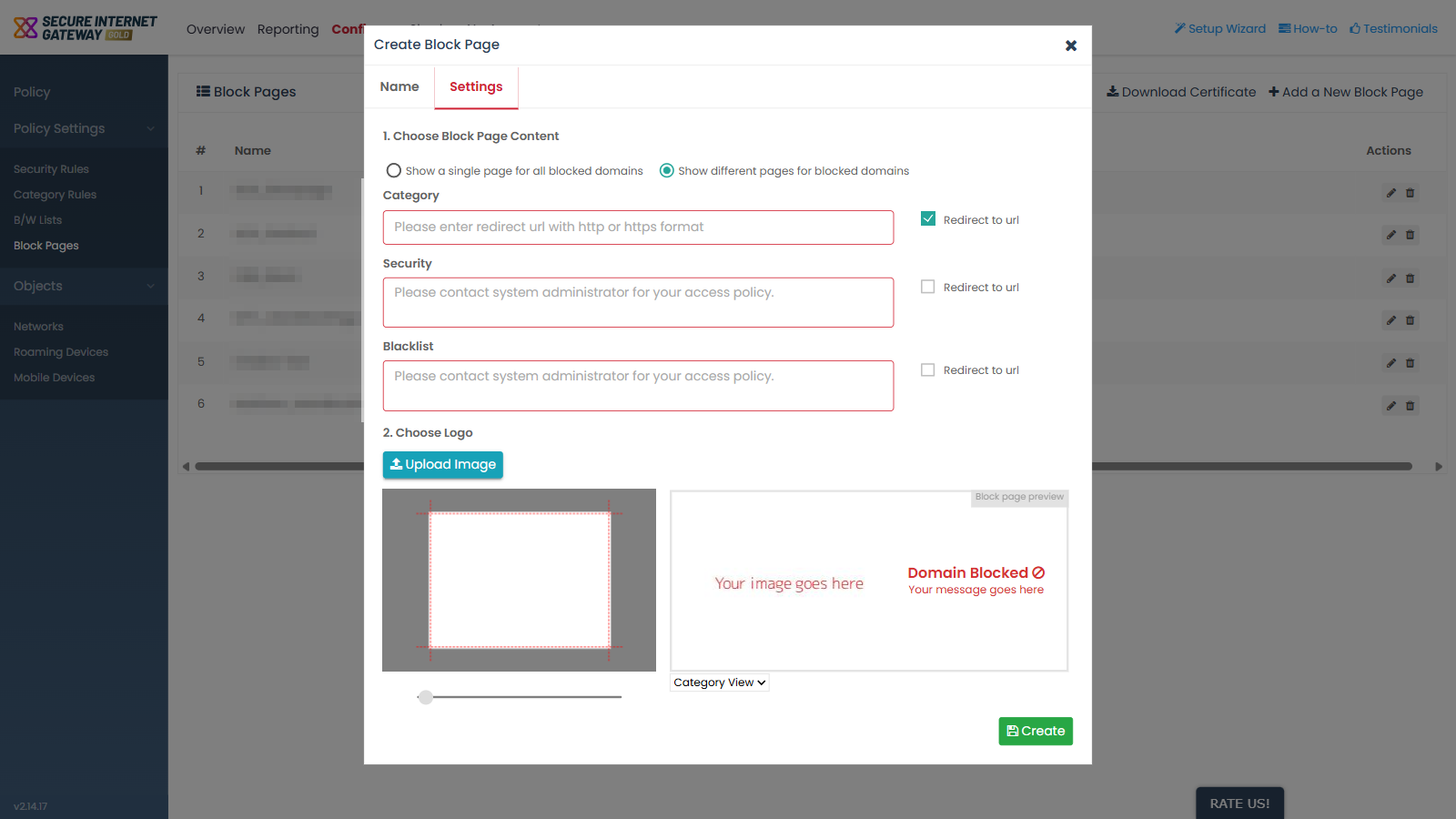
- Click 'Configure' > 'Policy Settings' > 'Block Pages' > 'Add a New Block Page' > 'Next', then tick 'Redirect to url'.
'Redirect to url' changes what happens when a user reaches a blocked site. Instead of being shown a message, the user is sent to an address you supply.
You can redirect blocked users to your own page from either block page mode.
How it behaves
- The checkbox is cleared by default, so a new block page shows a message rather than redirecting.
- Ticking it replaces that message box with a URL field.
- The URL field's placeholder reads 'Please enter redirect url with http or https format'.
Field descriptions
| Field | Description | Options and default |
| Redirect to url | Checkbox that swaps the message box for a URL field. | Cleared by default. |
| Redirect URL | Text field shown once the checkbox is ticked. The address the blocked user is sent to. | Empty. Placeholder: 'Please enter redirect url with http or https format'. |
Redirect blocked users
- Complete the 'Name' tab and click 'Next'.
- Choose either block page content option.
- Tick 'Redirect to url' beneath the message box you want to replace.
- Type the destination address into the URL field, starting with 'http' or 'https'.
- Click 'Create'.
Note: with 'Show different pages for blocked domains' selected, each of the three reasons has its own 'Redirect to url' checkbox. You can redirect one reason and leave the others showing a message.