ITarian Help

Find the desired product help

Secure Internet Gateway

Secure Internet Gateway

Admin Guide Version

English

Print Help
Secure Internet Gateway > Configure > Manage Policies > Create A Policy - Settings
  • Secure Internet Gateway
    • Setup Wizard
      • Start The Setup Wizard
      • Step 1 - Add Your Network
      • Step 2 - Confirm Rules For Your Policy
    • Setup Guide
      • Set Up Your Network To Secure Internet Gateway
        • Step 1 - Add Network
        • Step 2 - Set DNS
        • Step 3 - Create Policy
        • Step 4 - Analyze
      • Set Up Your Roaming Endpoints
        • Step 1 - Download And Install The Agent
        • Step 2 - Anti-Tampering Password
        • Step 3 - Configure Policy
        • Step 4 - Analyze Logs
      • Protect Your Mobile Devices
    • Overview
      • View The Web Overview Dashboard
      • View The Security Overview Dashboard
      • Page Through Widgets And Change The Reporting Period
    • Reporting
      • View Web Activity Reports
      • Drill Into The 'Other' Slice On Top URL Categories
      • View Security Reports
      • View Mobile Activity Reports
      • View Local Resolver Activity Reports
      • View CCB Activity Reports
      • View And Manage Exports
    • Configure
      • Manage Policies
        • Create A Policy - Select Objects
        • Create A Policy - Settings
        • Update A Policy
        • Validate A Policy With Check Policy
        • Manage Domain Classification Requests
          • How Domain Classification Requests Work
          • Request A Category Change
          • Website Category Reference
      • Policy Settings
        • Manage Security Rules
          • Create A Security Rule - Name
          • Create A Security Rule - Settings
        • Manage Category Rules
          • Create A Category Rule - Name
          • Create A Category Rule - Settings
        • Manage Domain B/W Lists
          • Create A B/W List - Name
          • Create A B/W List - Settings
          • Block By Country Top-Level Domain
        • Manage Block Pages
          • Create A Block Page - Name
          • Create A Block Page - Single Page For All Blocked Domains
          • Create A Block Page - Different Pages Per Block Reason
          • Redirect Blocked Users To A URL
      • Objects
        • Manage Networks
          • Add A Network
          • Add A Network - Additional Settings
          • Add A Network With A Dynamic IP Address
        • Manage Roaming Devices
          • Set An Anti-Tampering Password
          • Download The Roaming Agent
          • Deploy The Roaming Agent Through Endpoint Manager
        • Manage Mobile Devices
          • Add A Mobile Device
    • Shadow AI
      • Shadow AI Summary
      • Discovered AI Tool Catalog
      • Top AI Devices, Mobile Agents And Networks
      • Recent AI Blocks
      • Export Shadow AI Data
      • Block AI Tools
      • How Shadow AI Counts Requests
    • View Account Information And Licences

Create a Policy - Settings


  • Click 'Configure' > 'Policy' > 'Add New Policy', complete the 'Select Objects' tab, then click 'Next' to open this interface.


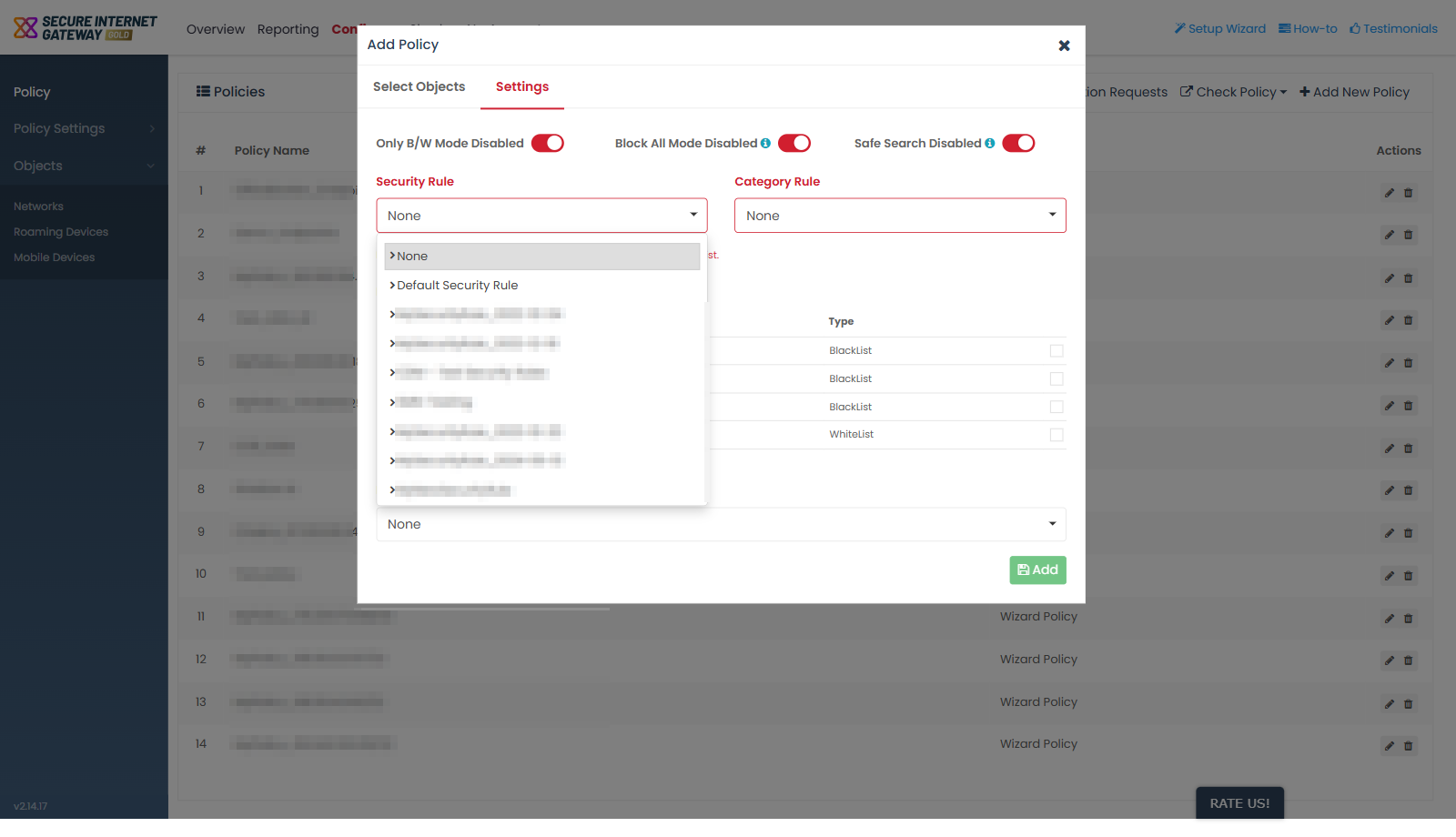
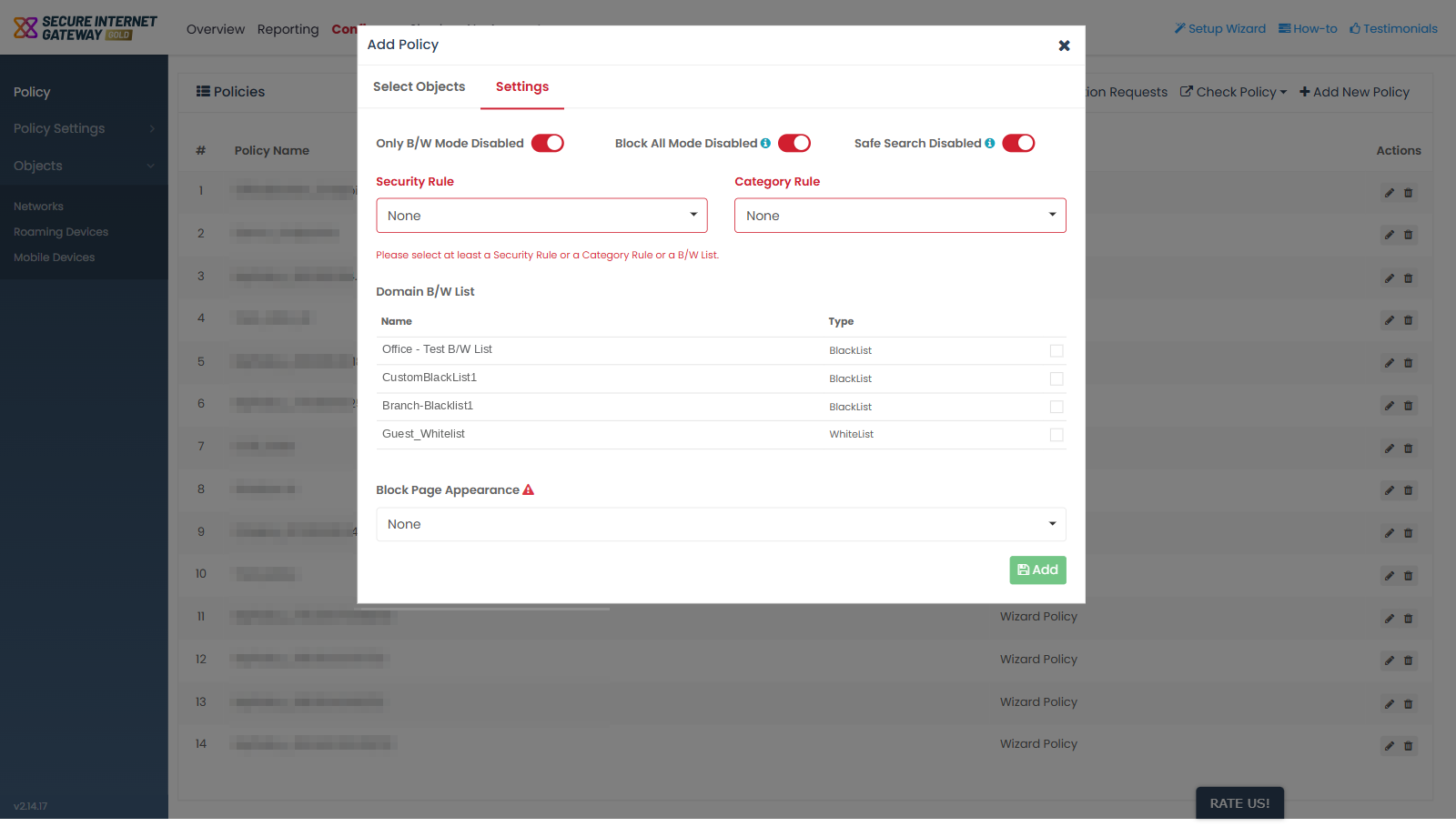
The 'Settings' tab of the 'Add Policy' dialog decides what the policy enforces on the objects you selected.

You set the three policy modes, attach a security rule, a category rule and any domain B/W lists, choose the block page the blocked user sees, and save the policy.
Secure_Internet_Gateway_1.png

Modes

Three toggles run across the top of the tab. All three are off by default. Each label states its current state, so it reads '... Disabled' while the toggle is off.

Toggle Description Default
Only B/W Mode Shown as 'Only B/W Mode Disabled' while off. This toggle carries no information icon, so the console gives no on-screen description of its behaviour. Off
Block All Mode Shown as 'Block All Mode Disabled' while off. Its information icon reads 'When block all mode is enabled, all domains except your whitelisted domains will be blocked.' Off
Safe Search Shown as 'Safe Search Disabled' while off. Its information icon reads 'Eliminates search engine results that contain explicit sexual and potentially offensive content.' Off

Rules and lists

Field Description Default
Security Rule A single-select listing 'None' plus every rule defined under 'Policy Settings' > 'Security Rules'. Nineteen entries were listed on this account, including 'Default Security Rule'. None
Category Rule A single-select listing 'None' plus every rule defined under 'Policy Settings' > 'Category Rules'. Twenty-four entries were listed on this account. None
Domain B/W List A tick-list of the lists defined under 'Policy Settings' > 'B/W Lists', with a checkbox on each row. Ten lists were present on this account. Nothing ticked
Block Page Appearance A single-select listing 'None' plus the block pages defined under 'Policy Settings' > 'Block Pages'. None
Secure_Internet_Gateway_2.png

Domain B/W List columns

Column Description
Name The name of the B/W list.
Type Whether the list is a 'BlackList' or a 'WhiteList'.

Validation

A message under the two rule selectors reads 'Please select at least a Security Rule or a Category Rule or a B/W List.' You must supply at least one of the three before the policy can be saved.

Block page warning for mobile agents

A red warning triangle appears beside the 'Block Page Appearance' label when a mobile agent is among the selected objects. Its tooltip reads 'Warning! Selected Block Page setting can not be applied for selected mobile agents.'

Save the policy

  1. Set the three mode toggles as you want them.

  2. Choose a 'Security Rule', a 'Category Rule', or tick one or more entries under 'Domain B/W List'.

  3. Choose a 'Block Page Appearance' if you want a specific block page.

  4. Click 'Add', the green button at the bottom right of the dialog.


Comodo Help
  • IT Platform:
  • Help
  • Scripts
  • Wiki
  • Forum
  • Developer
  • RMM
  • Patch Management
  • Service Desk
  • ITSM
  • Managed Service Provider
  • Managed Detection and Response
  • Ticketing System
  • Helpdesk
  • ITIL

Copyright 2026 Itarian