


Create a Security Rule - Settings
- Click 'Configure' > 'Policy Settings' > 'Security Rules' > 'Create Security Rule' > 'Next' to open this interface.
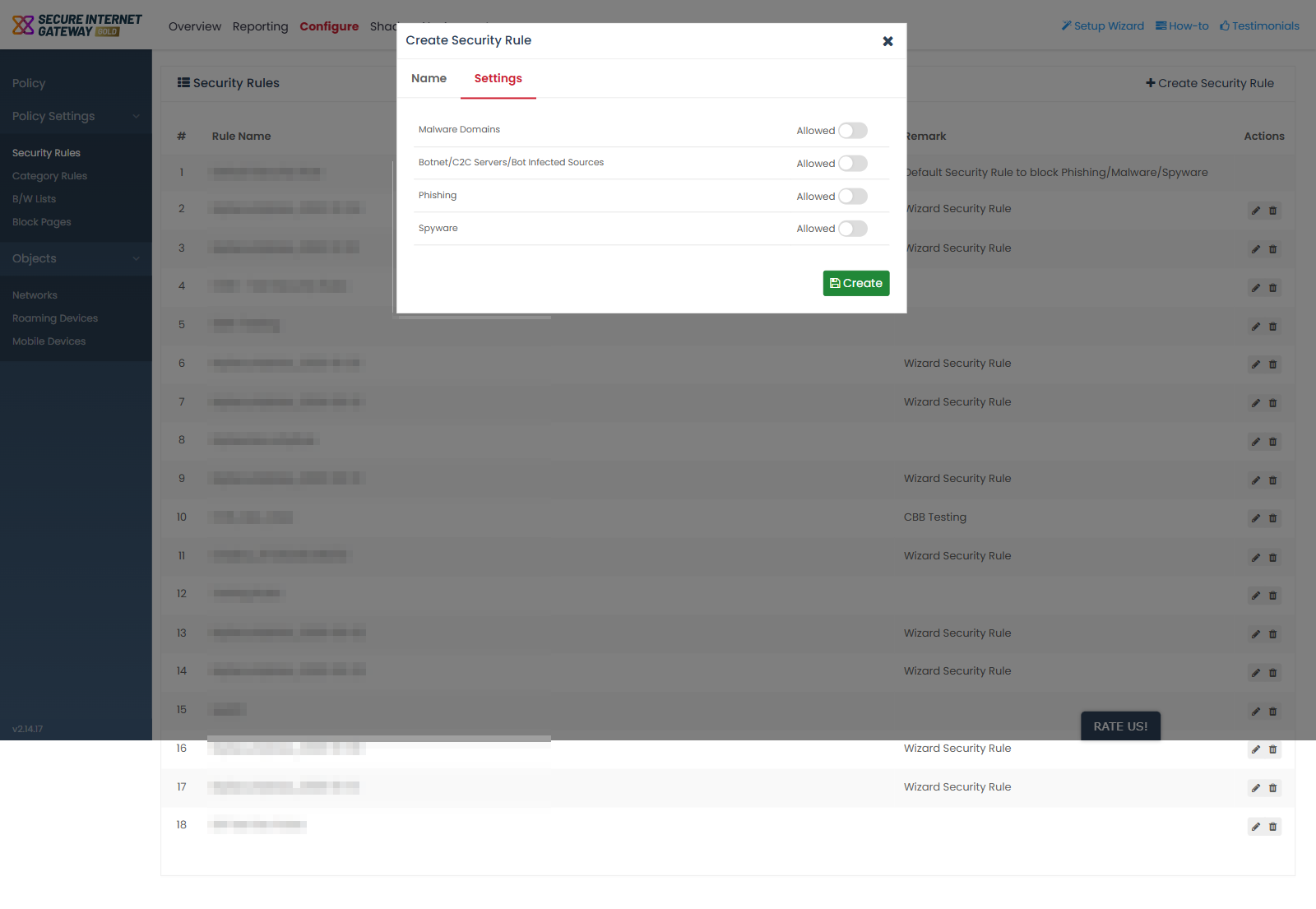
The 'Settings' tab lists every threat category the rule can act on, one row per category, each with its own toggle. The toggle's caption states the current setting for that category.
You can set each threat category to allowed or blocked from this tab.
How the toggles read
- 'Allowed' - the toggle is off, and this rule does not block that category.
- 'Blocked' - the toggle is on, and this rule blocks that category.
Every category starts at 'Allowed', so a new rule blocks nothing until you switch categories on.
Threat categories
| Threat category | Default setting |
| Malware Domains | Allowed |
| Botnet/C2C Servers/Bot Infected Sources | Allowed |
| Phishing | Allowed |
| Spyware | Allowed |
| Webspam | Allowed |
| Drive-by Downloads | Allowed |
| Tor Nodes | Allowed |
| P2P Nodes | Allowed |
| Fake AV | Allowed |
| Blackhole/Sinkhole Systems | Allowed |
| VPN Servers | Allowed |
| Mobile Threats | Allowed |
| Known DDoS Sources | Allowed |
| Bitcoin Related | Allowed |
| PUA Domains | Allowed |
| Remote Access Services | Allowed |
| Self Signed SSL Sites | Allowed |
| Domains with no MX records | Allowed |
| Spam Sources | Allowed |
| Brute Forcer/Scanner | Allowed |
Choose the threat categories for a rule
- Complete the 'Name' tab and click 'Next'.
- Find the threat category you want to act on.
- Click its toggle to change the caption from 'Allowed' to 'Blocked'.
- Repeat for every category the rule should block.
- Scroll to the foot of the tab and click 'Create'.
Note: a category left at 'Allowed' is simply not acted on by this rule. It can still be blocked by another rule or by a B/W list attached to the same policy.