


Create a Security Rule - Name
- Click 'Configure' > 'Policy Settings' > 'Security Rules' > 'Create Security Rule' to open this interface.
'Create Security Rule' opens a dialog with two tabs, 'Name' and 'Settings'. The 'Name' tab is where you identify the rule before you choose the threat categories it blocks.
You can name the rule and record a note about it from this tab.
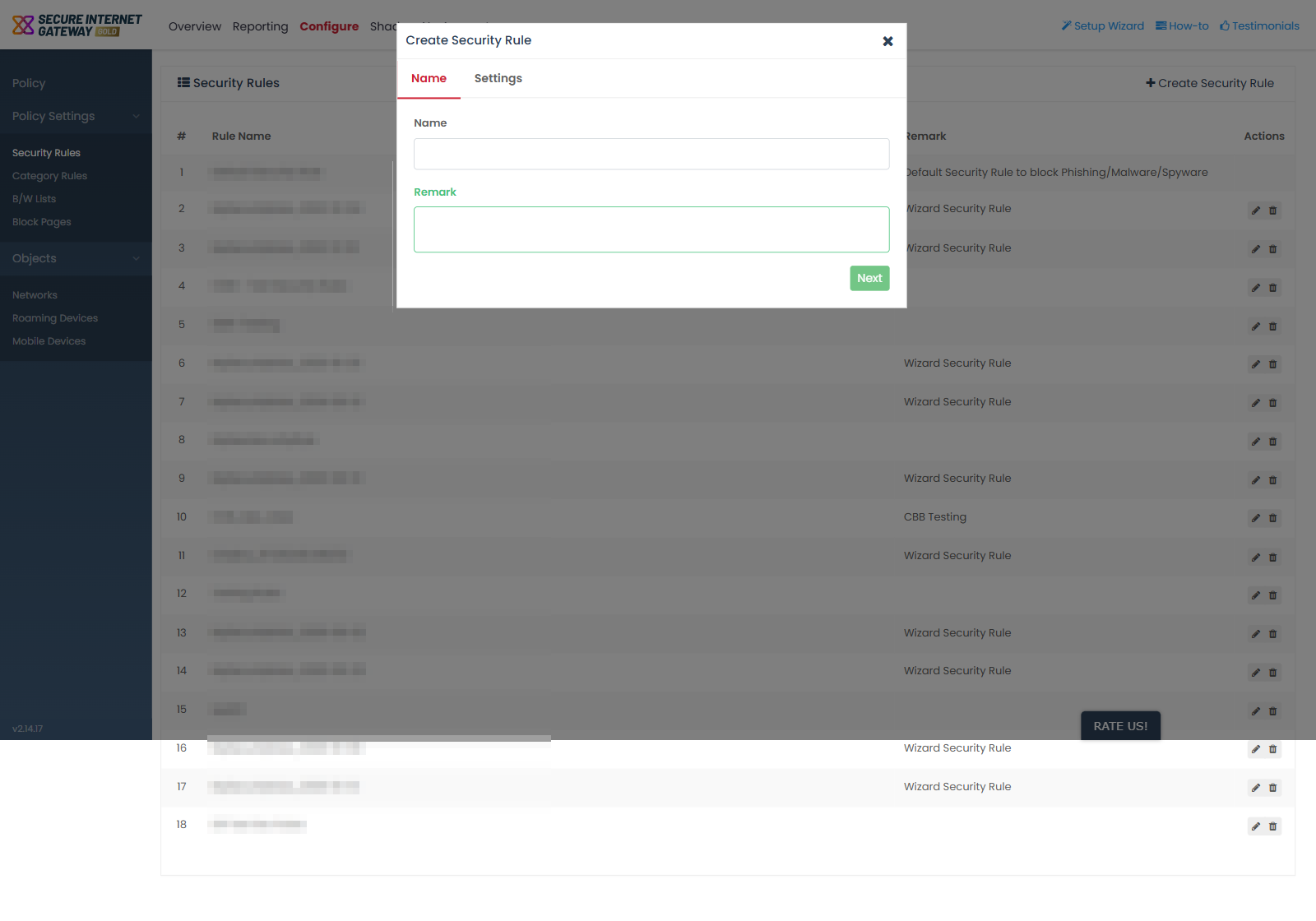
Field descriptions
| Field | Description | Required |
| Name | Text field. The label the rule is listed under on the 'Security Rules' screen. | Yes |
| Remark | Multi-line text field. A note about the rule, shown in the 'Remark' column of the list. | No |
Name a new security rule
- Click 'Configure' > 'Policy Settings' > 'Security Rules'.
- Click 'Create Security Rule'.
- Type a name for the rule in the 'Name' field.
- Type a note in the 'Remark' field if you want one.
- Click 'Next'.