ITarian Help

Find the desired product help

Secure Internet Gateway

Secure Internet Gateway

Admin Guide Version

English

Print Help
Secure Internet Gateway > Shadow AI > Shadow AI Summary
  • Secure Internet Gateway
    • Setup Wizard
      • Start The Setup Wizard
      • Step 1 - Add Your Network
      • Step 2 - Confirm Rules For Your Policy
    • Setup Guide
      • Set Up Your Network To Secure Internet Gateway
        • Step 1 - Add Network
        • Step 2 - Set DNS
        • Step 3 - Create Policy
        • Step 4 - Analyze
      • Set Up Your Roaming Endpoints
        • Step 1 - Download And Install The Agent
        • Step 2 - Anti-Tampering Password
        • Step 3 - Configure Policy
        • Step 4 - Analyze Logs
      • Protect Your Mobile Devices
    • Overview
      • View The Web Overview Dashboard
      • View The Security Overview Dashboard
      • Page Through Widgets And Change The Reporting Period
    • Reporting
      • View Web Activity Reports
      • Drill Into The 'Other' Slice On Top URL Categories
      • View Security Reports
      • View Mobile Activity Reports
      • View Local Resolver Activity Reports
      • View CCB Activity Reports
      • View And Manage Exports
    • Configure
      • Manage Policies
        • Create A Policy - Select Objects
        • Create A Policy - Settings
        • Update A Policy
        • Validate A Policy With Check Policy
        • Manage Domain Classification Requests
          • How Domain Classification Requests Work
          • Request A Category Change
          • Website Category Reference
      • Policy Settings
        • Manage Security Rules
          • Create A Security Rule - Name
          • Create A Security Rule - Settings
        • Manage Category Rules
          • Create A Category Rule - Name
          • Create A Category Rule - Settings
        • Manage Domain B/W Lists
          • Create A B/W List - Name
          • Create A B/W List - Settings
          • Block By Country Top-Level Domain
        • Manage Block Pages
          • Create A Block Page - Name
          • Create A Block Page - Single Page For All Blocked Domains
          • Create A Block Page - Different Pages Per Block Reason
          • Redirect Blocked Users To A URL
      • Objects
        • Manage Networks
          • Add A Network
          • Add A Network - Additional Settings
          • Add A Network With A Dynamic IP Address
        • Manage Roaming Devices
          • Set An Anti-Tampering Password
          • Download The Roaming Agent
          • Deploy The Roaming Agent Through Endpoint Manager
        • Manage Mobile Devices
          • Add A Mobile Device
    • Shadow AI
      • Shadow AI Summary
      • Discovered AI Tool Catalog
      • Top AI Devices, Mobile Agents And Networks
      • Recent AI Blocks
      • Export Shadow AI Data
      • Block AI Tools
      • How Shadow AI Counts Requests
    • View Account Information And Licences

Shadow AI Summary


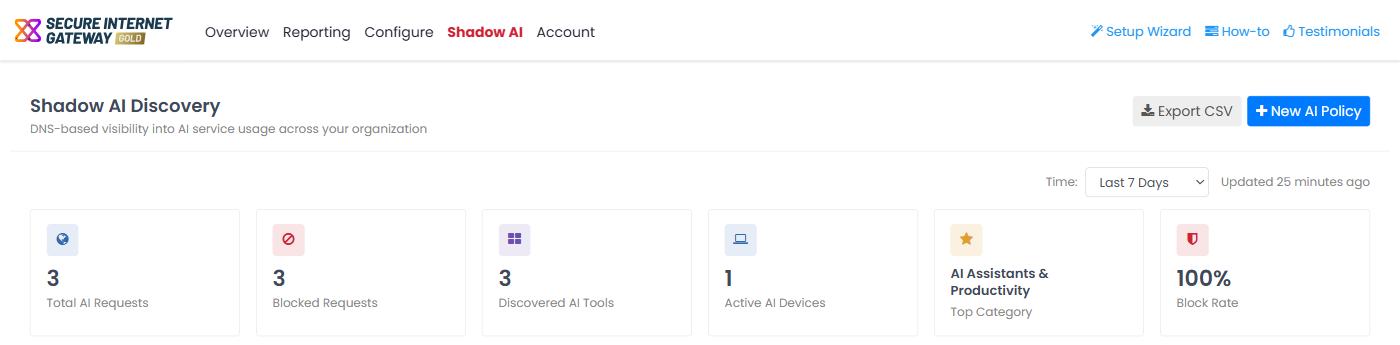
The top of the page summarizes AI activity for the time range you choose.

Open the page and choose a time range

  1. Log in to Secure Internet Gateway. In the Xcitium platform, click 'Security' > 'Network Security' > 'Secure Internet Gateway'.

  2. Click 'Shadow AI' in the top-menu. The 'Shadow AI Discovery' page opens.

  3. Wait for the page to finish loading. 'Updated ... ago' next to the time drop-down shows when the data was last refreshed. A seven-day range can take up to about 15 seconds because the page gathers exact counts.

  4. Use the 'Time' drop-down to select 'Last 1 Hour', 'Last 24 Hours' or 'Last 7 Days'. The default is 'Last 7 Days'. Every tile, chart and table on the page follows your selection.
Secure_Internet_Gateway_1.png

Summary tiles - Table of Descriptions

Tile Description
Total AI Requests The number of AI-related DNS requests in the selected time range.
Blocked Requests The number of those requests that were blocked.
Discovered AI Tools The number of distinct AI tools with any traffic.
Active AI Devices The number of distinct devices that made AI requests.
Top Category The most-used AI category.
Block Rate Blocked requests as a percentage of total AI requests. 100% means every AI request was blocked. 0% means none were.

All counts are exact, not estimates.

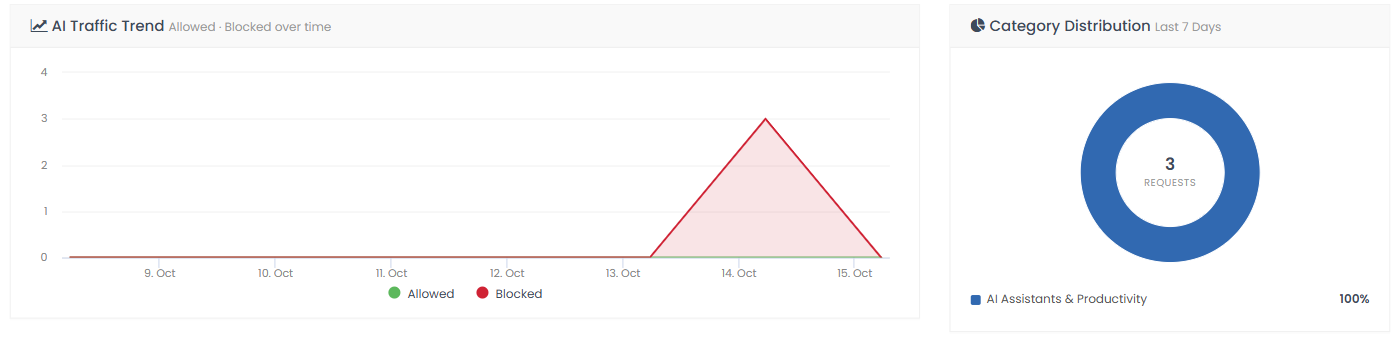
AI Traffic Trend

The chart plots allowed (green) and blocked (red) AI requests across the selected range.

Category Distribution

The donut chart shows the total number of requests and the percentage in each AI category. The categories are:

  • AI Assistants & Productivity
  • AI Development & Infrastructure
  • AI Generative Media
  • AI Data & Analytics
  • AI Agents & Automation
  • AI Business & Operations
  • AI Computer Vision
  • AI Design & UI
  • AI Document Chat
  • AI Healthcare
  • AI Legal
  • AI Voice & Audio Solutions
  • AI Website Builders

Secure_Internet_Gateway_2.png


Comodo Help
  • IT Platform:
  • Help
  • Scripts
  • Wiki
  • Forum
  • Developer
  • RMM
  • Patch Management
  • Service Desk
  • ITSM
  • Managed Service Provider
  • Managed Detection and Response
  • Ticketing System
  • Helpdesk
  • ITIL

Copyright 2026 Itarian