


Create a Category Rule - Name
- Click 'Configure' > 'Policy Settings' > 'Category Rules' > 'Create Category Rule' to open this interface.
'Create Category Rule' opens a dialog with two tabs, 'Name' and 'Settings'. The 'Name' tab is where you identify the rule.
You can name the rule and record a note about it from this tab.
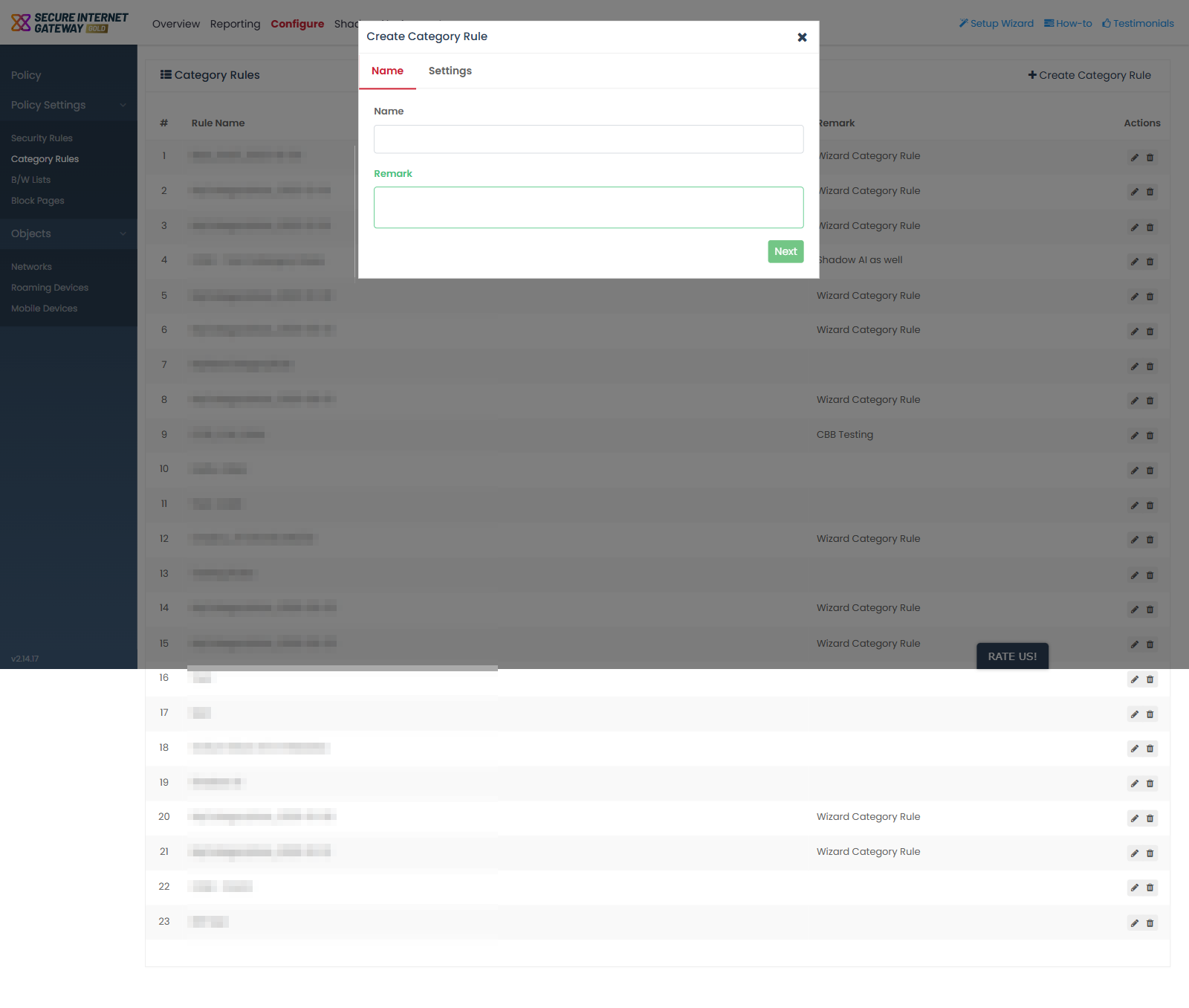
Field descriptions
| Field | Description | Required |
| Name | Text field. The label the rule is listed under on the 'Category Rules' screen. | Yes |
| Remark | Multi-line text field. A note about the rule, shown in the 'Remark' column of the list. | No |
Name a new category rule
- Click 'Configure' > 'Policy Settings' > 'Category Rules'.
- Click 'Create Category Rule'.
- Type a name for the rule in the 'Name' field.
- Type a note in the 'Remark' field if you want one.
- Click 'Next'.