


Manage Networks
- Click 'Configure' > 'Objects' > 'Networks' to open this interface.
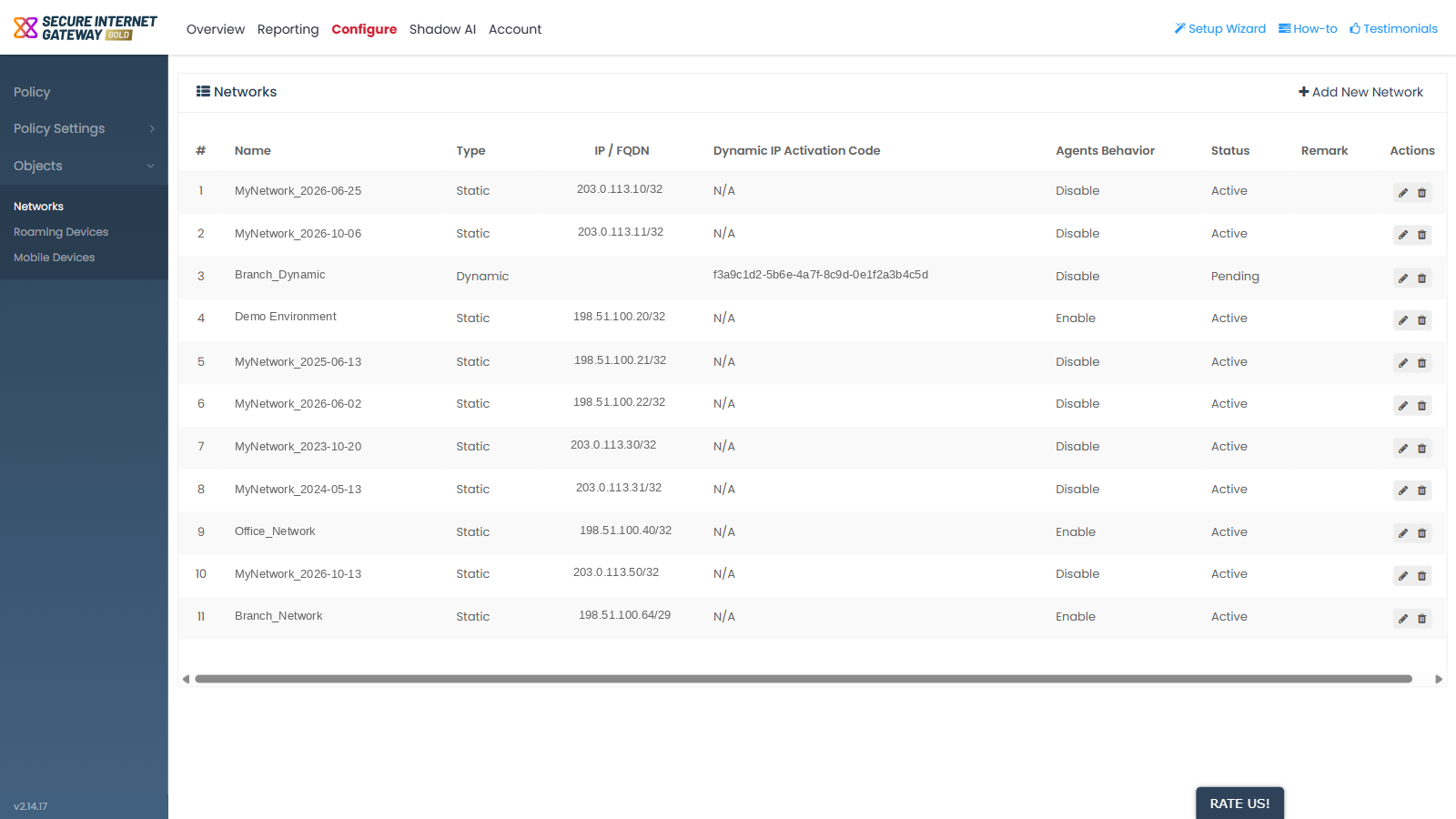
A network is a site identified by its public IP address or FQDN. Once a network exists here you can apply a policy to it from the 'Policy' screen.
You can add, edit and remove networks from this interface.
Header control
- 'Add New Network' - opens the 'Add Network' dialog.
Columns
| Column | Description |
| # | The row number in the list. |
| Name | The label you gave the network. |
| Type | Whether the network has a fixed or a changing address. Either 'Static' or 'Dynamic'. |
| IP / FQDN | The public address of the network. This is blank for a dynamic network until the updater agent reports an address. |
| Dynamic IP Activation Code | The code you type into the Dynamic IP Updater agent. This shows 'N/A' for a static network. |
| Agents Behavior | Either 'Enable' or 'Disable'. This reflects the 'Disable Roaming Agent when on this network' setting saved with the network. |
| Status | Either 'Active' or 'Pending'. A network that you add with an IP address other than the one you are connecting from stays 'Pending' until Xcitium support verifies it. |
| Remark | The note saved with the network. |
| Actions | The row action icons. |
Row actions
Both actions are present on every row.
- Pencil icon, tooltip 'Edit' - opens the network in an update dialog.
- Bin icon, tooltip 'Remove' - opens a delete confirmation.
View the networks
- Click 'Configure' > 'Objects' > 'Networks'.
- Read the list. The list is not paged, so every network is shown at once.
Edit a network
- Find the network in the list.
- Click the pencil icon in the 'Actions' column.
- Change the fields you need in the update dialog.
- Click the save button.