


Manage Block Pages
- Click 'Configure' > 'Policy Settings' > 'Block Pages' to open this interface.
A block page is the page a user sees instead of a site that a policy has blocked. You attach a block page to a policy on the policy's 'Settings' tab.
You can create, update and delete block pages, and download the certificate that lets them be shown for HTTPS sites, from this interface.
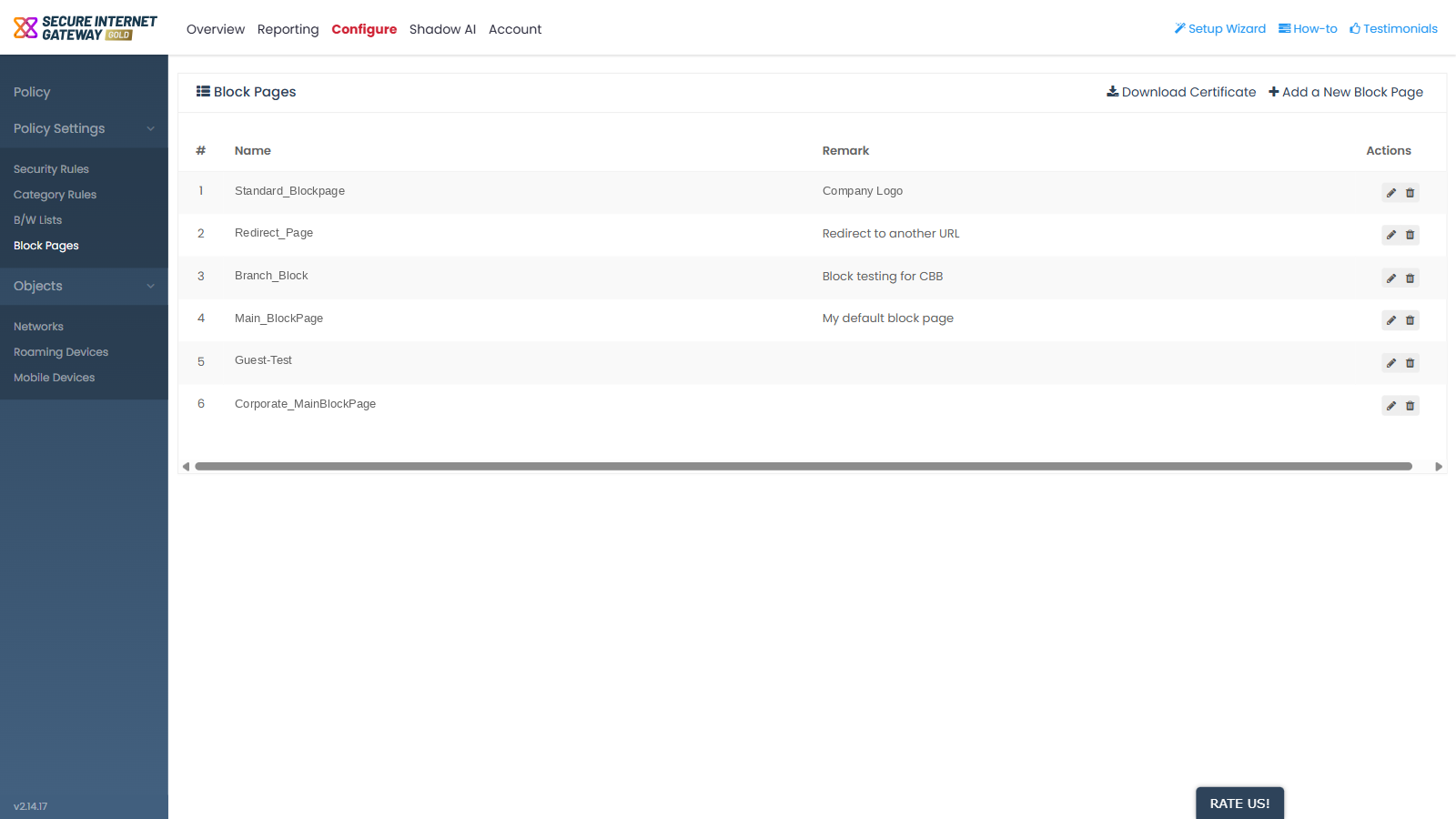
Header controls
- 'Download Certificate' - a download link to '/api/blockpage/download'. It supplies the certificate that lets the block page be shown in place of an HTTPS site.
- 'Add a New Block Page' - opens the 'Create Block Page' dialog.
Column descriptions
| Column | Description |
| # | The row number in the list. |
| Name | The name given to the block page. |
| Remark | The note saved with the block page. |
| Actions | The row-action icons for the block page. |
Row actions
- Pencil icon - opens the block page in an update dialog.
- Bin icon - opens a delete confirmation with a 'Cancel' button.
View and manage block pages
- Click 'Configure' > 'Policy Settings' > 'Block Pages'.
- Find the block page you want in the 'Name' column.
- Click the pencil icon in the 'Actions' column to open it for editing.
- Click the bin icon in the 'Actions' column to remove it, then confirm the deletion.
Download the block page certificate
- Click 'Configure' > 'Policy Settings' > 'Block Pages'.
- Click 'Download Certificate'.
- Install the downloaded certificate on the devices that should see the block page for HTTPS sites.