


Download the Roaming Agent
- Click 'Configure' > 'Objects' > 'Roaming Devices' > 'Download Agent' to open this dialog.
This dialog supplies the roaming agent installer for Windows and macOS. A device registers itself to your account when the downloaded package is installed.
You can download the installer for either platform, or get a link for deploying through Endpoint Manager.
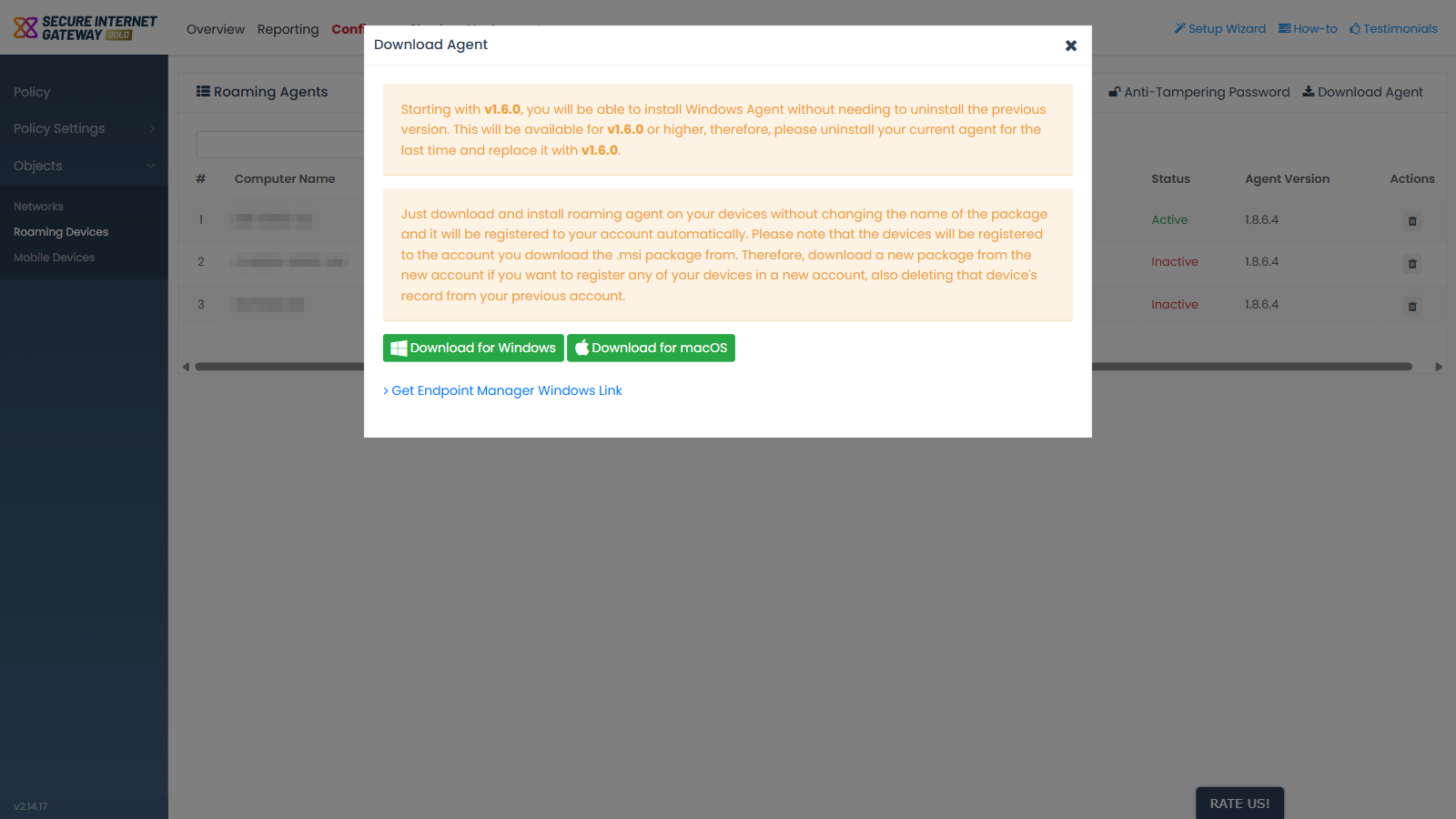
Controls
- 'Download for Windows' - downloads the Windows installer package.
- 'Download for macOS' - downloads the macOS installer package.
- 'Get Endpoint Manager Windows Link' - reveals, in place, the download link to use when deploying the agent through Endpoint Manager.
Download and install the agent
- Click 'Configure' > 'Objects' > 'Roaming Devices'.
- Click 'Download Agent'.
- Click 'Download for Windows' or 'Download for macOS'.
- Run the package on the device without renaming it.
- Check 'Configure' > 'Objects' > 'Roaming Devices'. The device appears in the list once it registers.
Note: do not rename the package. The package carries the account it was downloaded from, which is how the device registers itself.
Note: a device registers to the account the package was downloaded from. To move a device to another account, download a fresh package from that account and delete the device's record from the previous one.
See 'Deploy the Roaming Agent through Endpoint Manager' for the Endpoint Manager link, and 'Set Up Your Roaming Endpoints' for the full walkthrough.