


Create a Category Rule - Settings
- Click 'Configure' > 'Policy Settings' > 'Category Rules' > 'Create Category Rule' > 'Next' to open this interface.
The 'Settings' tab is where you pick the website categories the rule blocks. The categories are chosen from a single multi-select picker.
You can select individual categories, whole category groups, or every category at once from this tab.
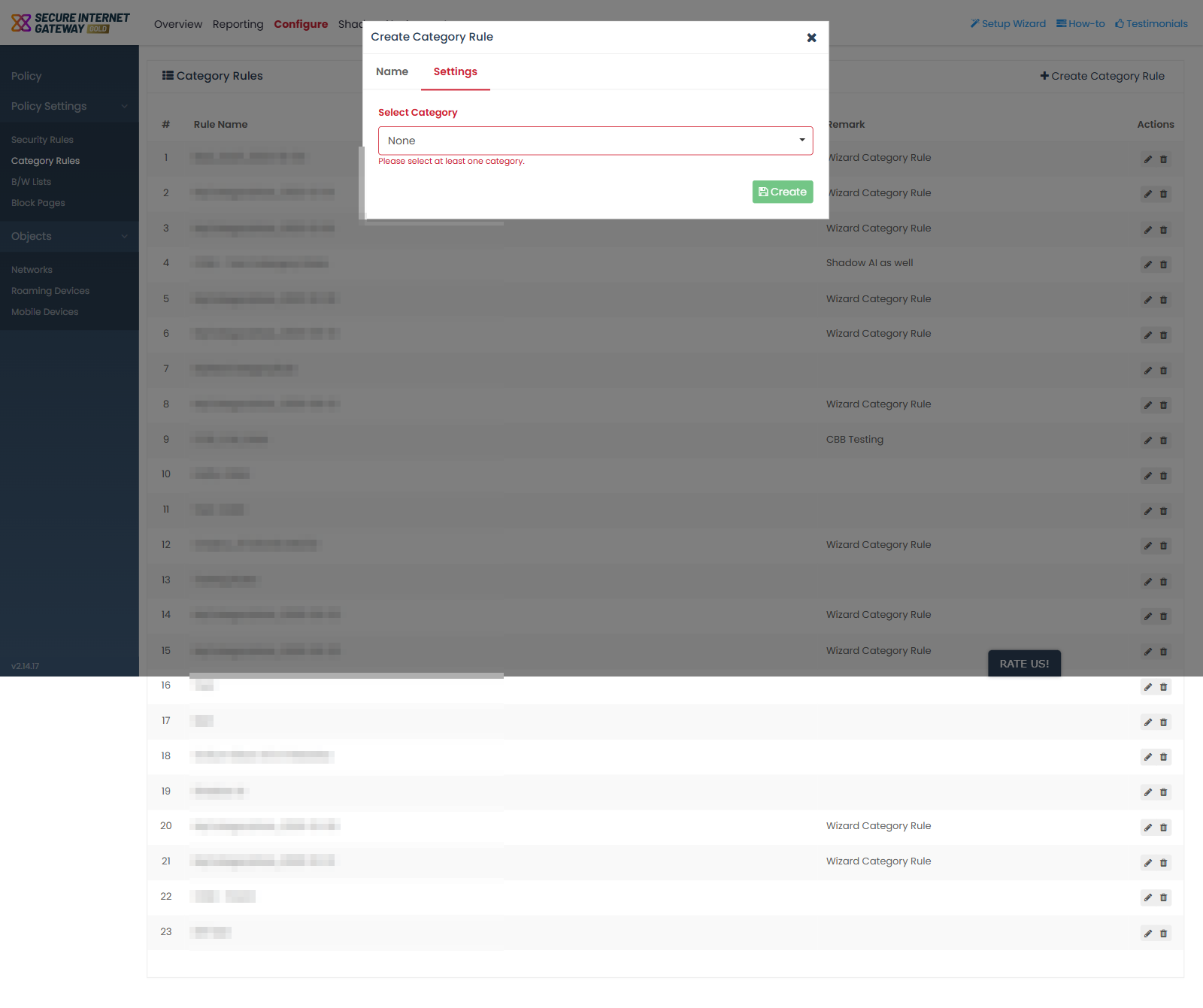
Field descriptions
| Field | Description | Required |
| Select Category | Multi-select picker. The button reads 'None' until you choose something. Clicking it opens the category list. | Yes |
The category picker
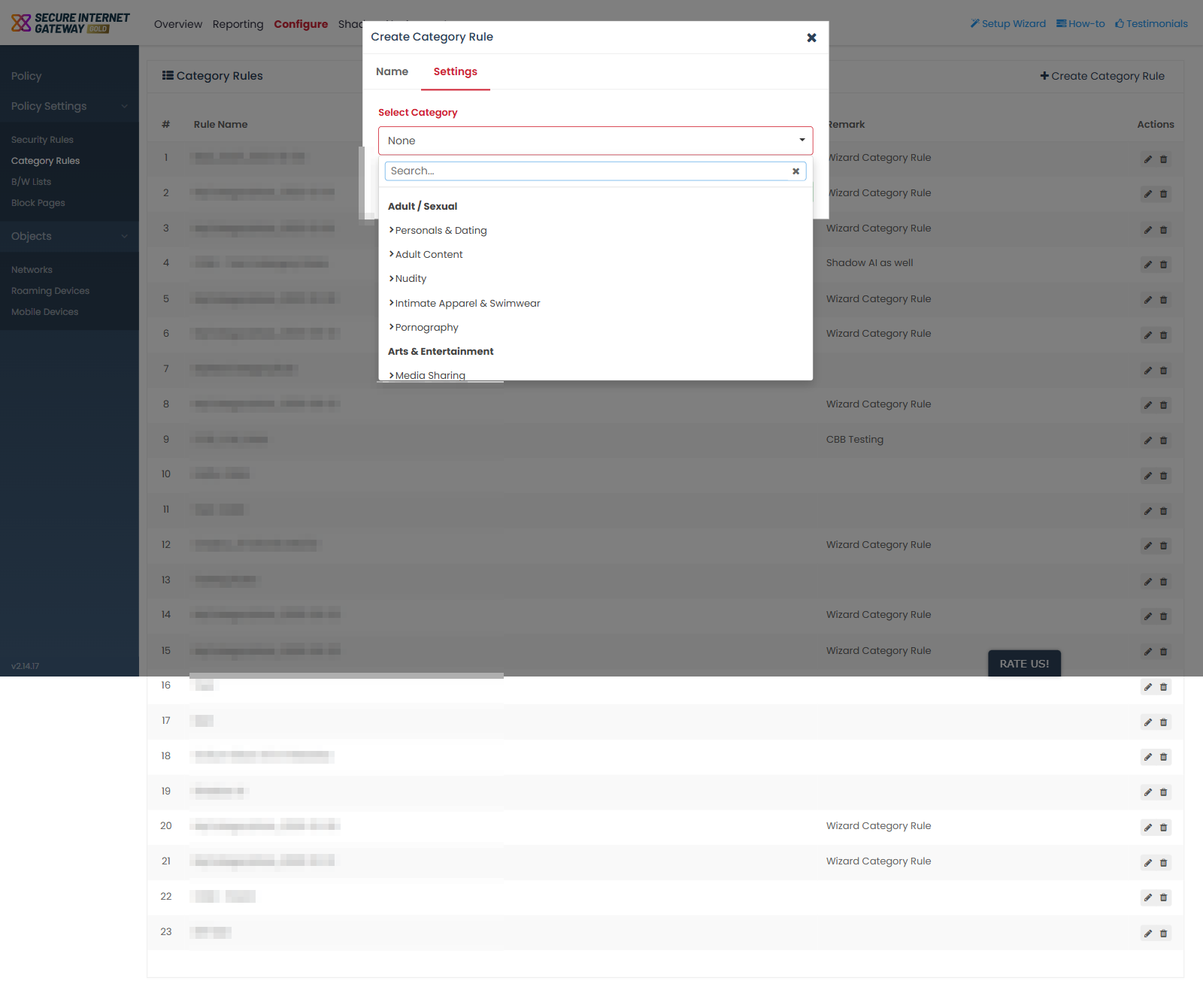
The picker holds the following controls:
- 'Search...' - filters the list as you type.
- 'Select All' - ticks every category in the taxonomy.
- 'Deselect All' - clears every ticked category.
- The category taxonomy itself - 19 groups holding 98 entries in total. A group can be selected as a whole, or you can tick individual categories inside it.
This is the same website category taxonomy used by 'Request a Category Change'. See 'Website Category Reference' for the full list of groups and categories.
Dialog control
- 'Create' - saves the rule. Clicking it with nothing selected shows the validation message 'Please select at least one category.'
Choose the categories for a rule
- Complete the 'Name' tab and click 'Next'.
- Click the 'Select Category' button, which reads 'None'.
- Type in the 'Search...' box to narrow the list, or scroll to the group you want.
- Tick a group to select all of its categories, or tick individual categories inside it.
- Click 'Select All' if the rule should cover every category, or 'Deselect All' to start again.
- Click 'Create'.